
AWS
Connecting Hawkeye to your AWS environment allows us to collect key telemetry data from various services on your AWS console. These services include resource configurations, Cloudtrail change events, Cloudwatch metrics, logs, and alarms.
The scope of data that we can access depends on the permissions assigned to the AWS role and the configuration of your AWS services.
To ensure a smooth integration, we follow AWS’s best practices by utilizing an assumed role and external ID for secure access.
Step 1: Create an IAM Role
- Option A: Using AWS CLI (CloudShell)
(For users who prefer automation or infrastructure as code)
Follow this option if you want to create the IAM role using scripts or templates.
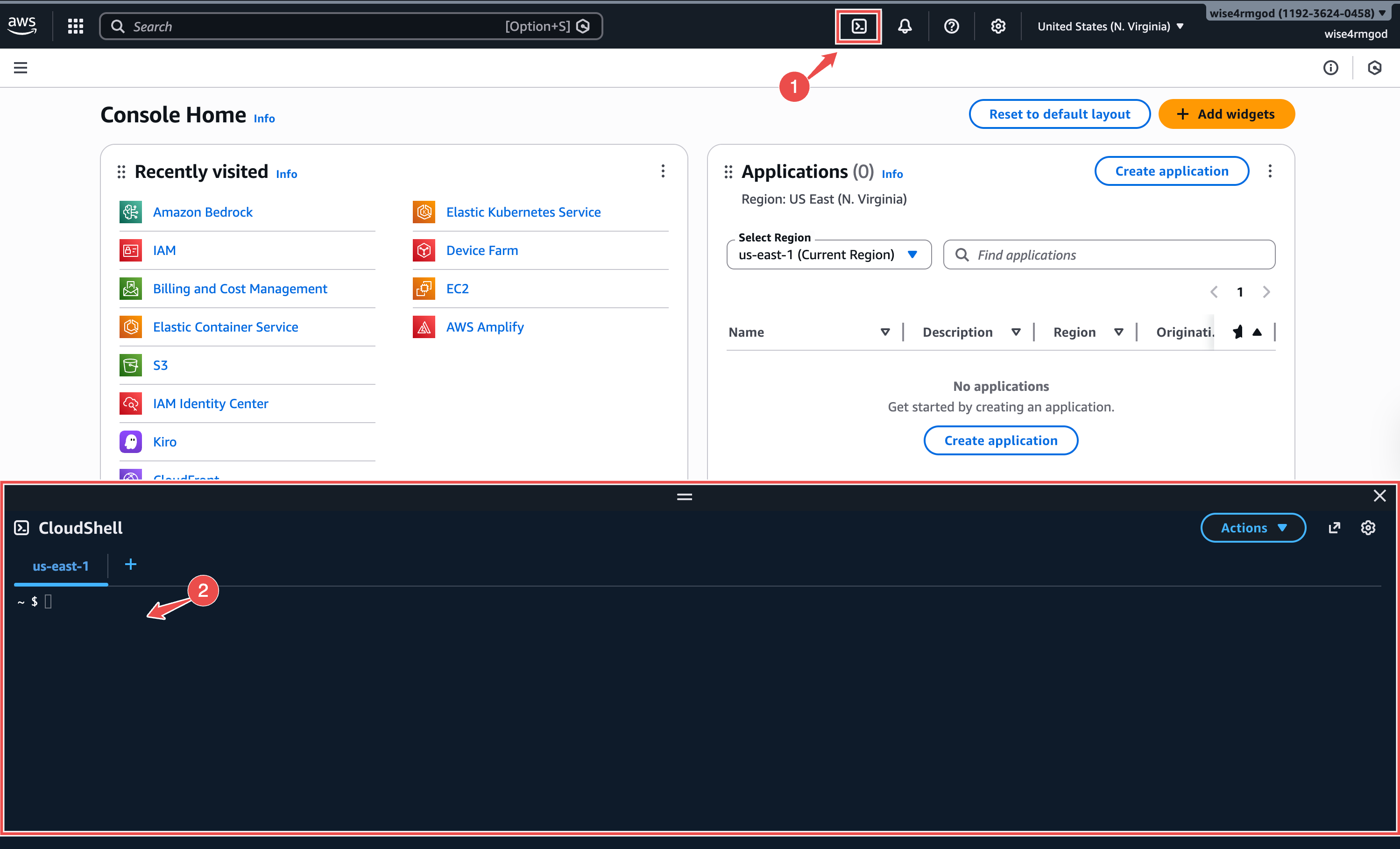
Fig.1 - AWS Cloud Shell
- Click the terminal icon at the top of the AWS Console to open CloudShell.
- Paste and run the
aws iam create-rolecommand to create a new IAM role called Hawkeye with a trust policy that allows the Neubird/Hawkeye AWS account to assume it using an External ID.
 aws iam create-role \    --role-name Hawkeyez \    --assume-role-policy-document '{      "Version": "2012-10-17",      "Statement": [        {          "Effect": "Allow",          "Principal": {            "AWS": "arn:aws:iam::905418326654:root"          },          "Action": "sts:AssumeRole",          "Condition": {            "StringEquals": {              "sts:ExternalId": "1234567"            }          }        }      ]    }' \    --description "IAM role for Hawkeye/Neubird read-only access"
  aws iam attach-role-policy \    --role-name Hawkeye \    --policy-arn arn:aws:iam::aws:policy/ReadOnlyAccess

aws iam get-role --role-name Hawkeye --query 'Role.Arn' --output text- Option B: Step-by-step in the AWS Console
(Recommended for most users)
Fig.2 - A walkthrough of to create an IAM Role
Sign in to the AWS management console with the appropriate permissions to create an IAM role. After that, follow the instructions below:
-
Access IAM: Navigate to the IAM service in the AWS console.
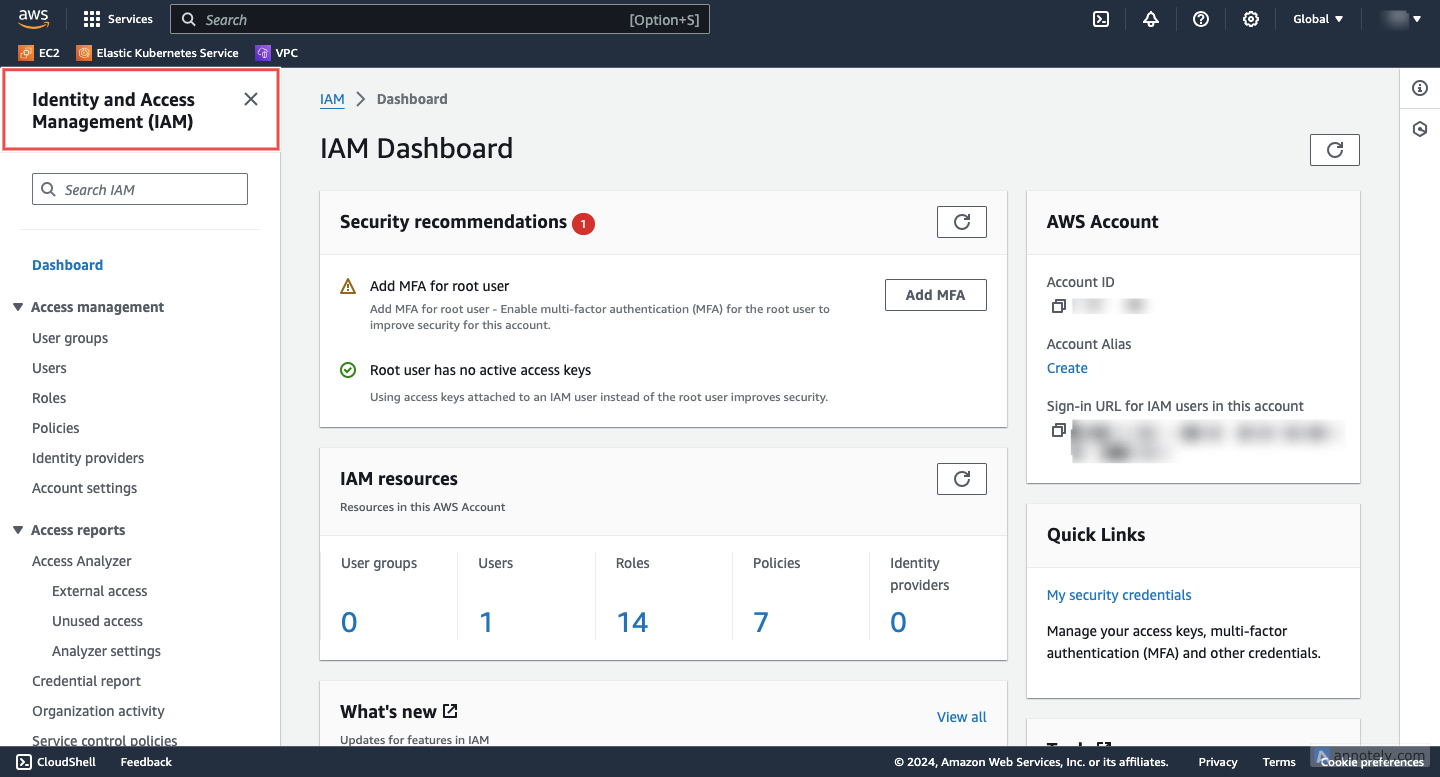
Fig.3 - Access IAM
-
Create a new role: In the navigation pane on the left, choose Roles > Create role.
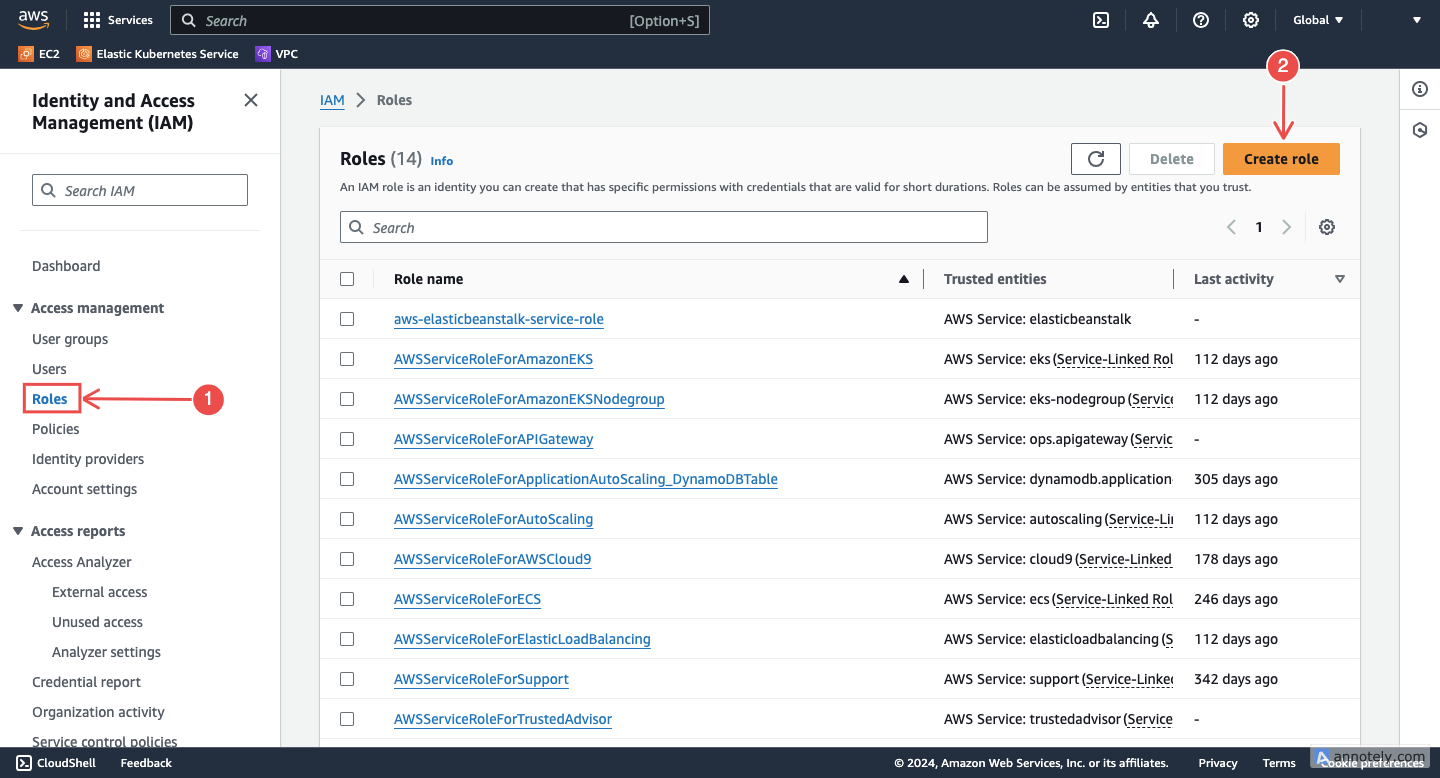
Fig.4 - Create a new role
-
Choose a trusted entity: Select Another AWS account as the type of trusted entity.
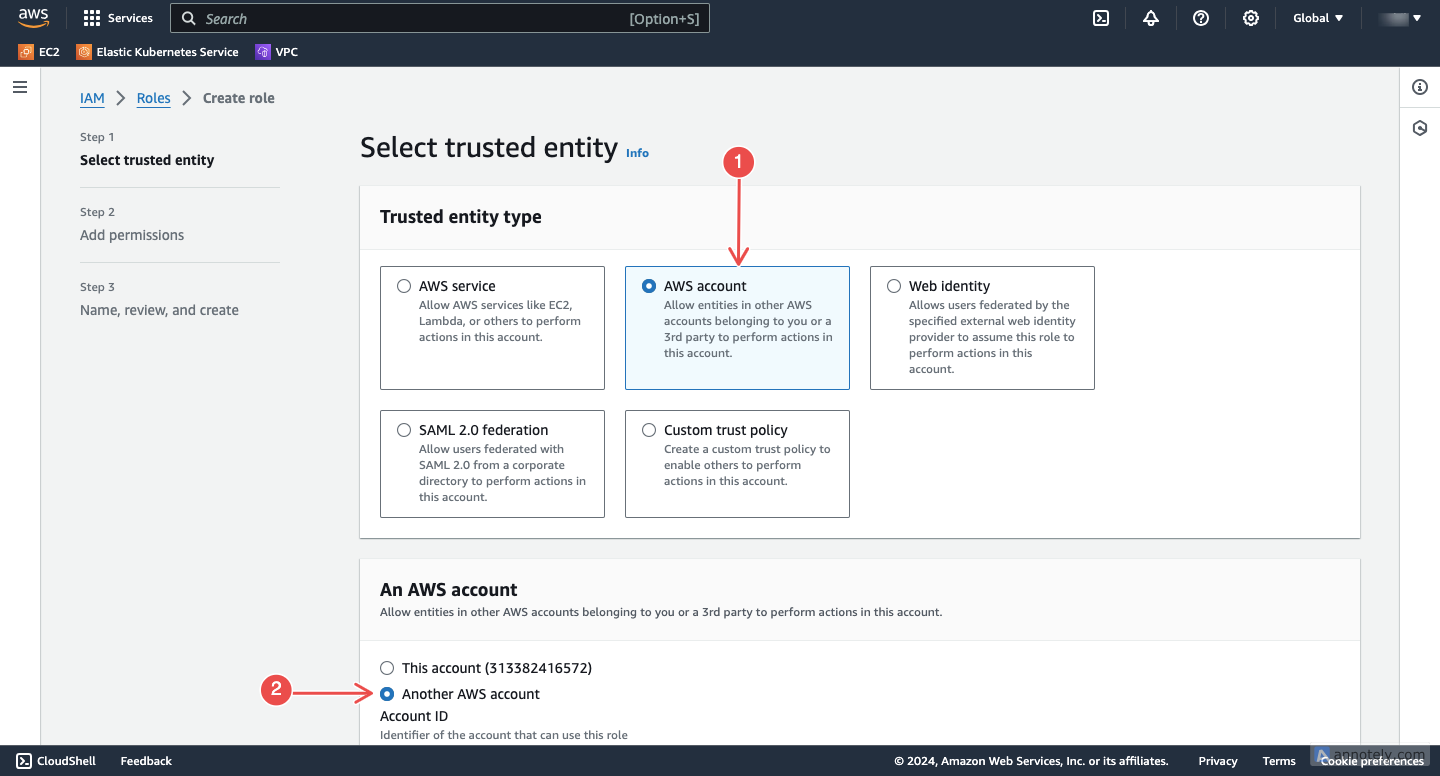
Fig.5 - Choose a trusted entity
-
Enter credentials:
-
Add Neubird’s Account ID: In the Account ID input box, paste the Neubird AWS Account ID:
905418326654. This will give us access to the IAM role. -
Add an External ID: Under Options, enter an external ID. For this, you’ll need to navigate to your AWS connection on the Hawkeye dashboard, and copy the External ID.
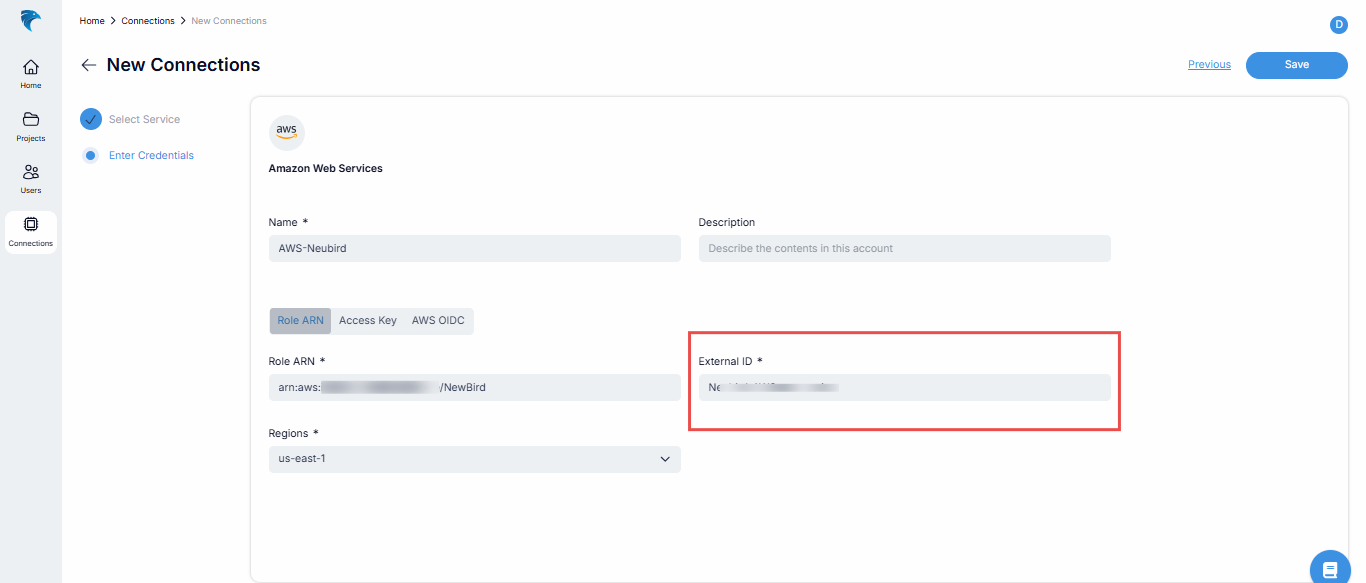
Fig.6 - Enter external ID
Once you have the External ID, paste it in the External ID input box.
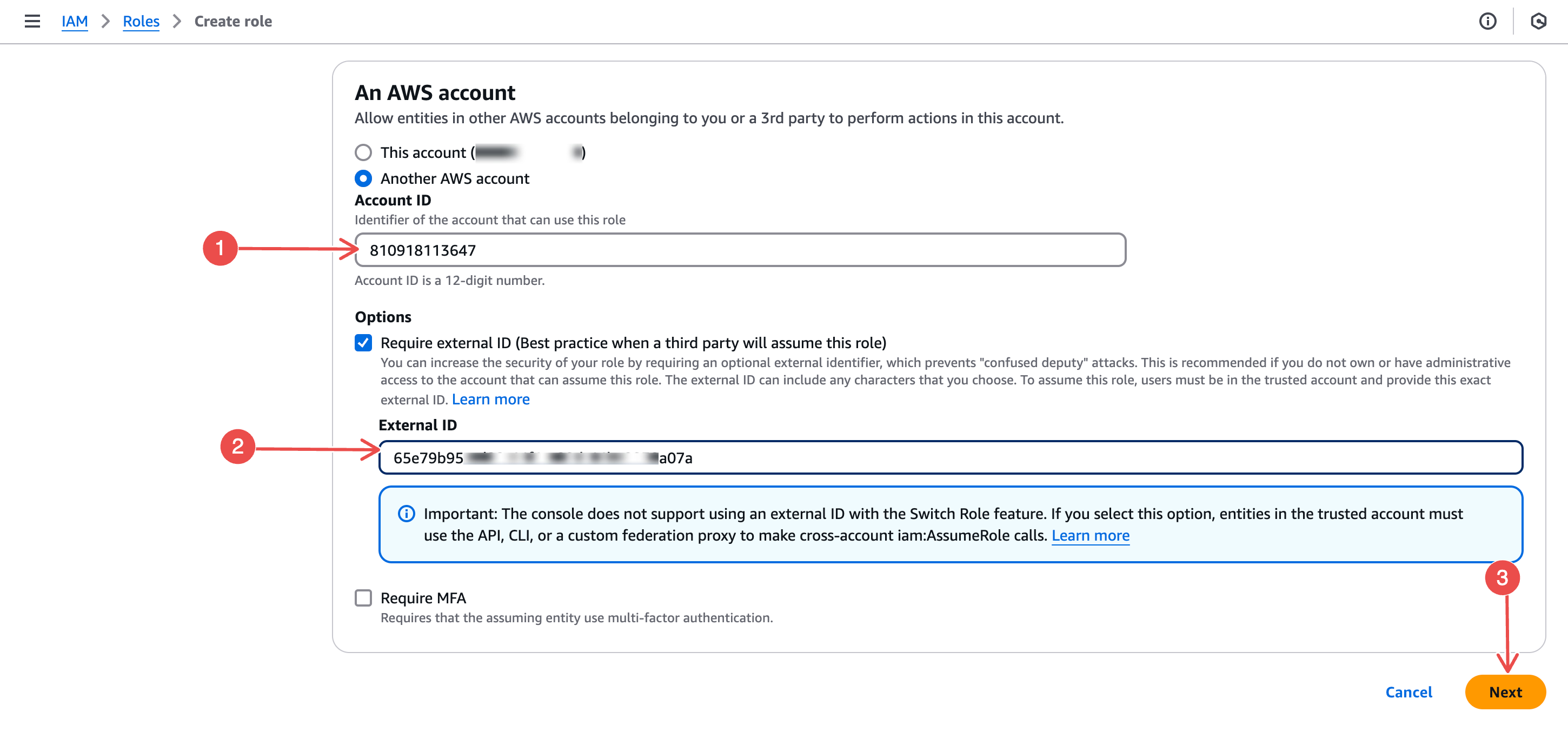
Fig.7 - Paste external ID
After this, click on the Next button at the bottom right corner.
-
-
Assign permissions: On the permissions console, use the Filter and select AWS managed - job function > ReadOnlyAccess.
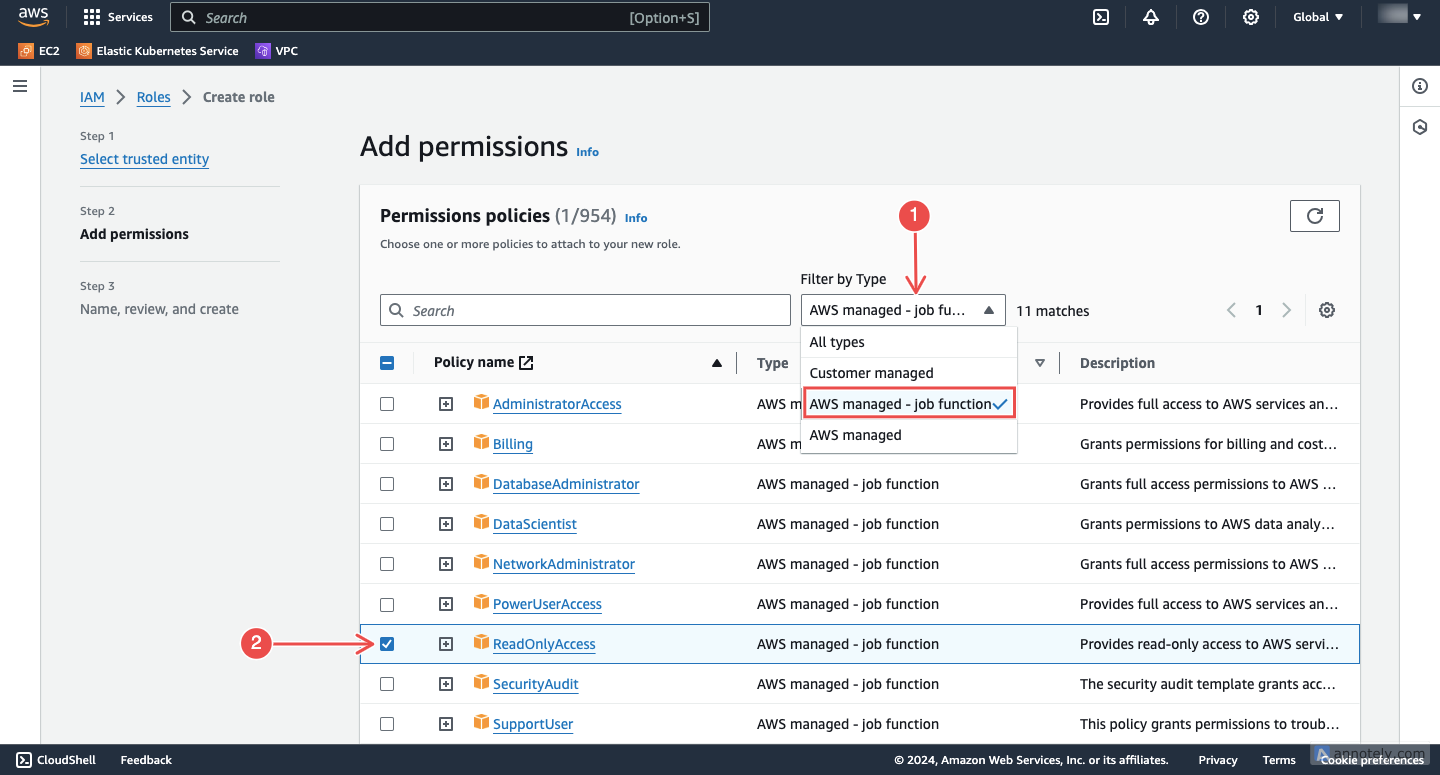
Fig.8 - Assign permissions
This grants Hawkeye the necessary permissions to view logs, metrics, and events from your AWS account without making changes to your resources.
After this, click on the Next button at the bottom right corner.
-
Finalize and review: Create a name and description for the IAM role, and then review the configurations.
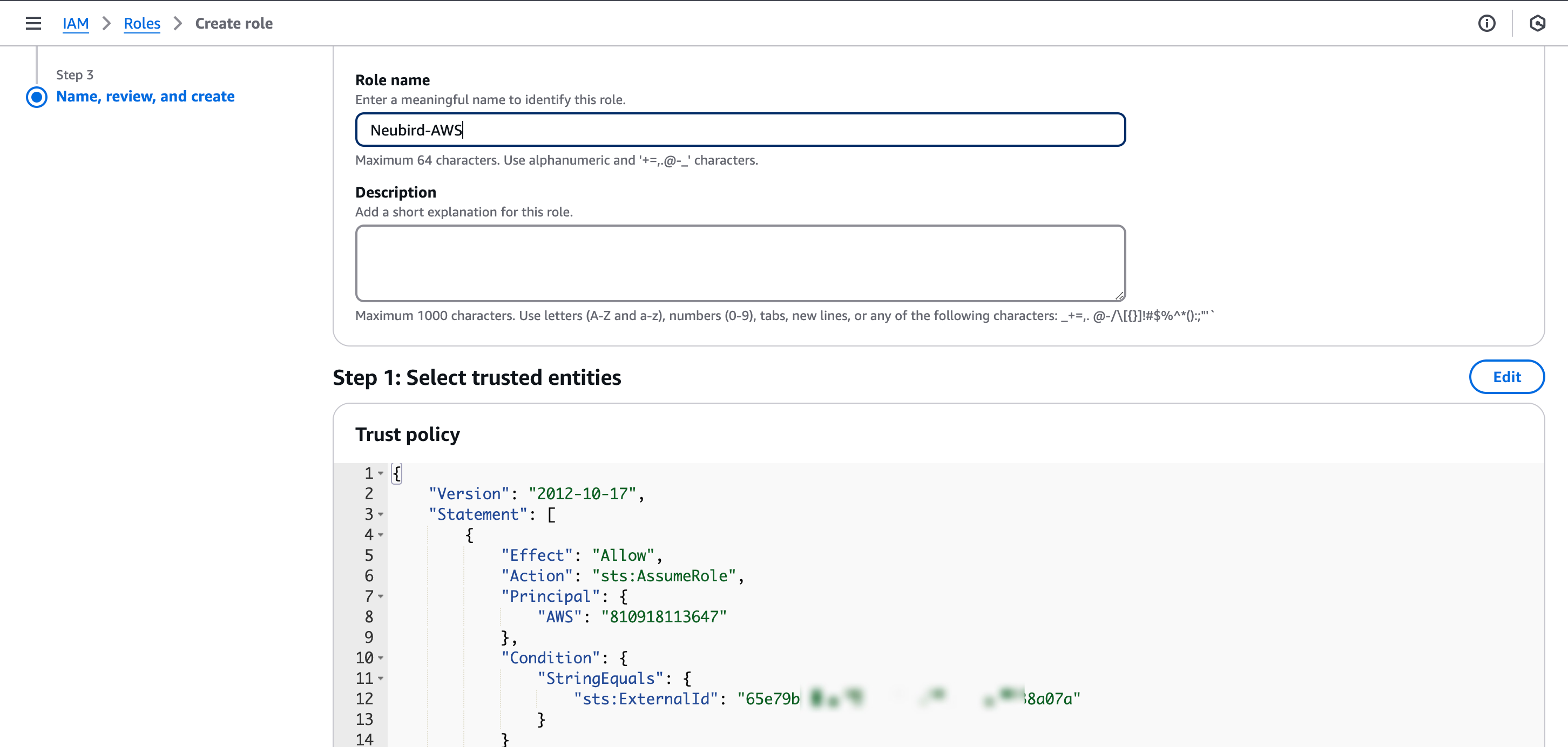
Fig.9 - Create a name and description
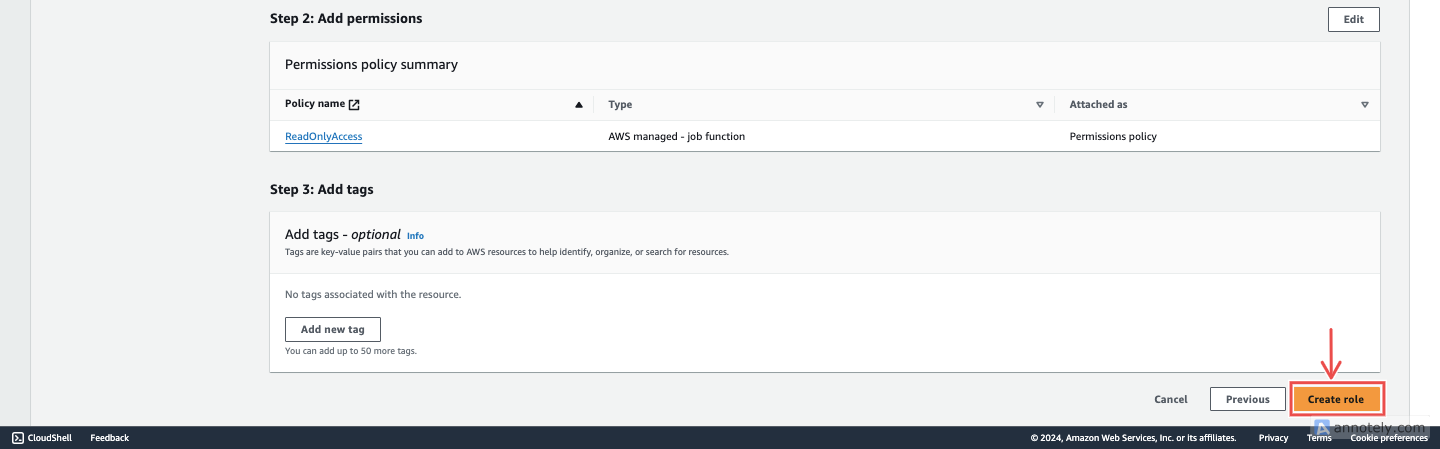
Fig.10 - Create role
If you’re satisfied with all these configurations, click the Create role button at the bottom right corner.
-
Copy the Role ARN: Once the role is created, navigate to it and copy the role ARN. You’ll need this to complete the connection setup on the Hawkeye dashboard.
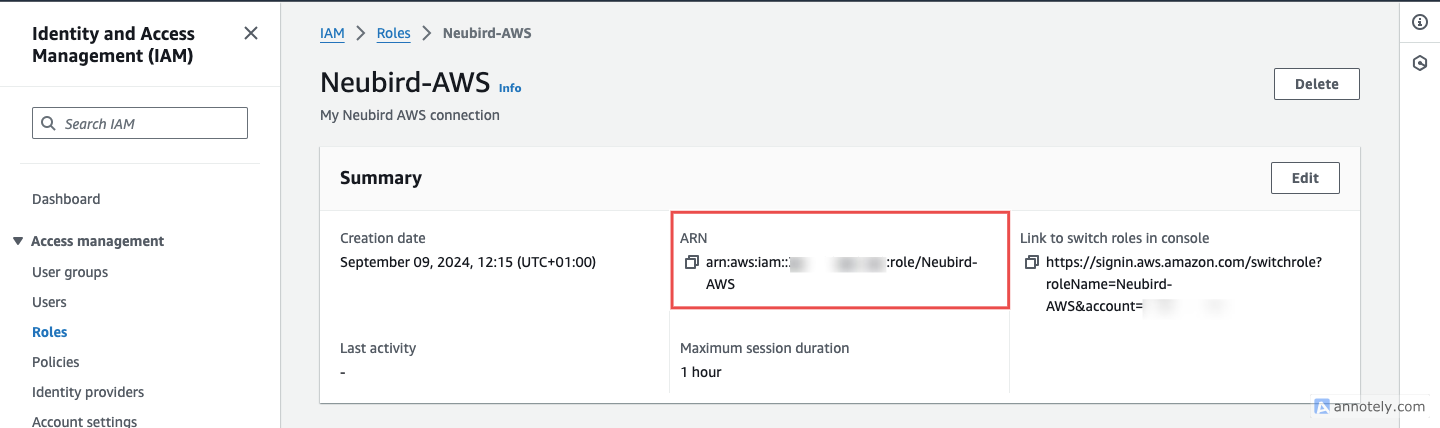
Fig.11 - Copy the role ARN
Step 2: Add Kubernetes (EKS) Access
If you want Hawkeye to read your Kubernetes clusters on AWS, you need to grant access at the EKS cluster level. Repeat the steps below for each cluster.
-
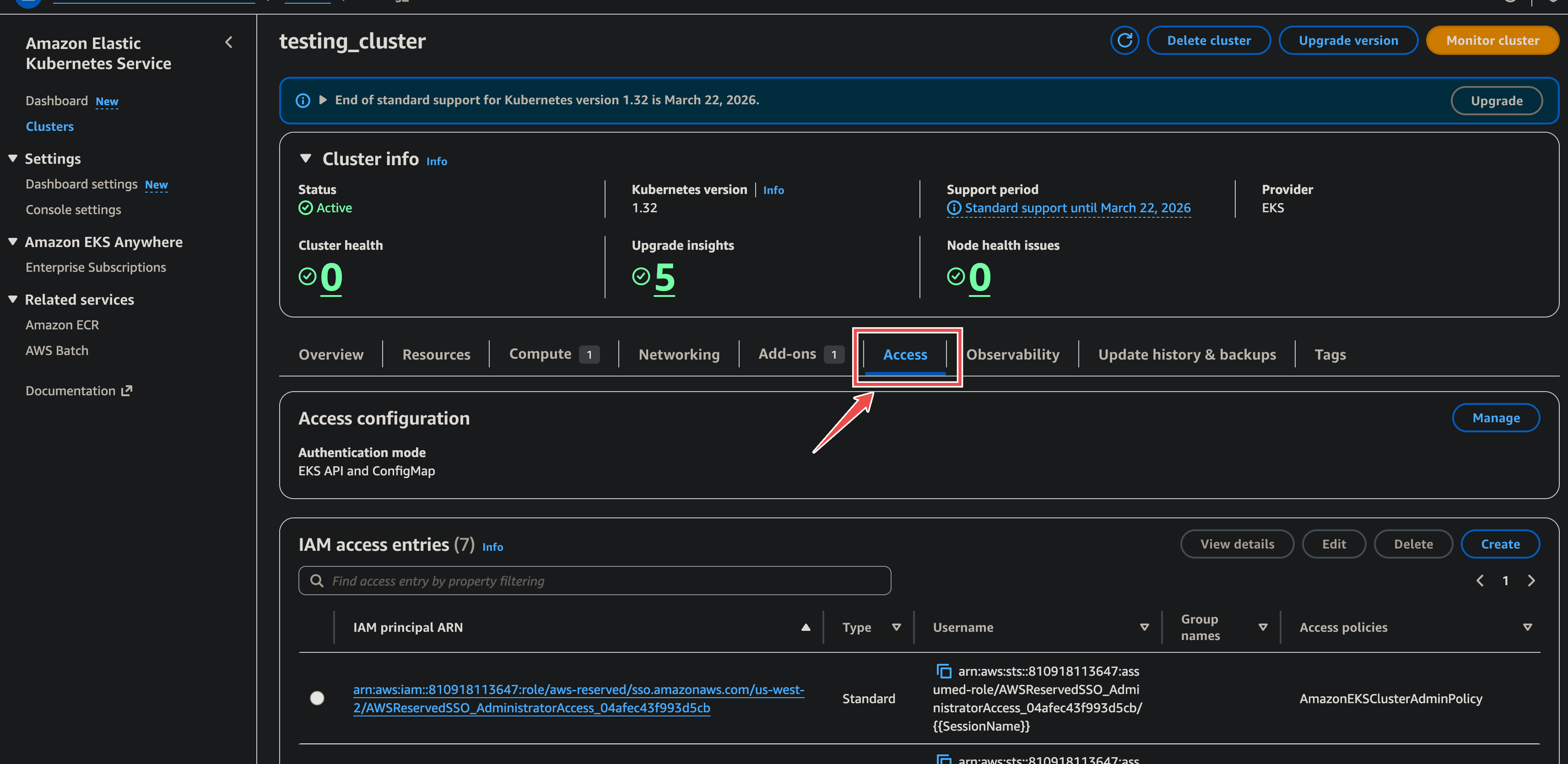
Navigate to the EKS Cluster and Access Tab:
- Go to the Amazon EKS service console.
- Select the target EKS cluster (e.g.,
testing_cluster). - Click on the Access tab.
- In the IAM access entries section, click Manage.
-
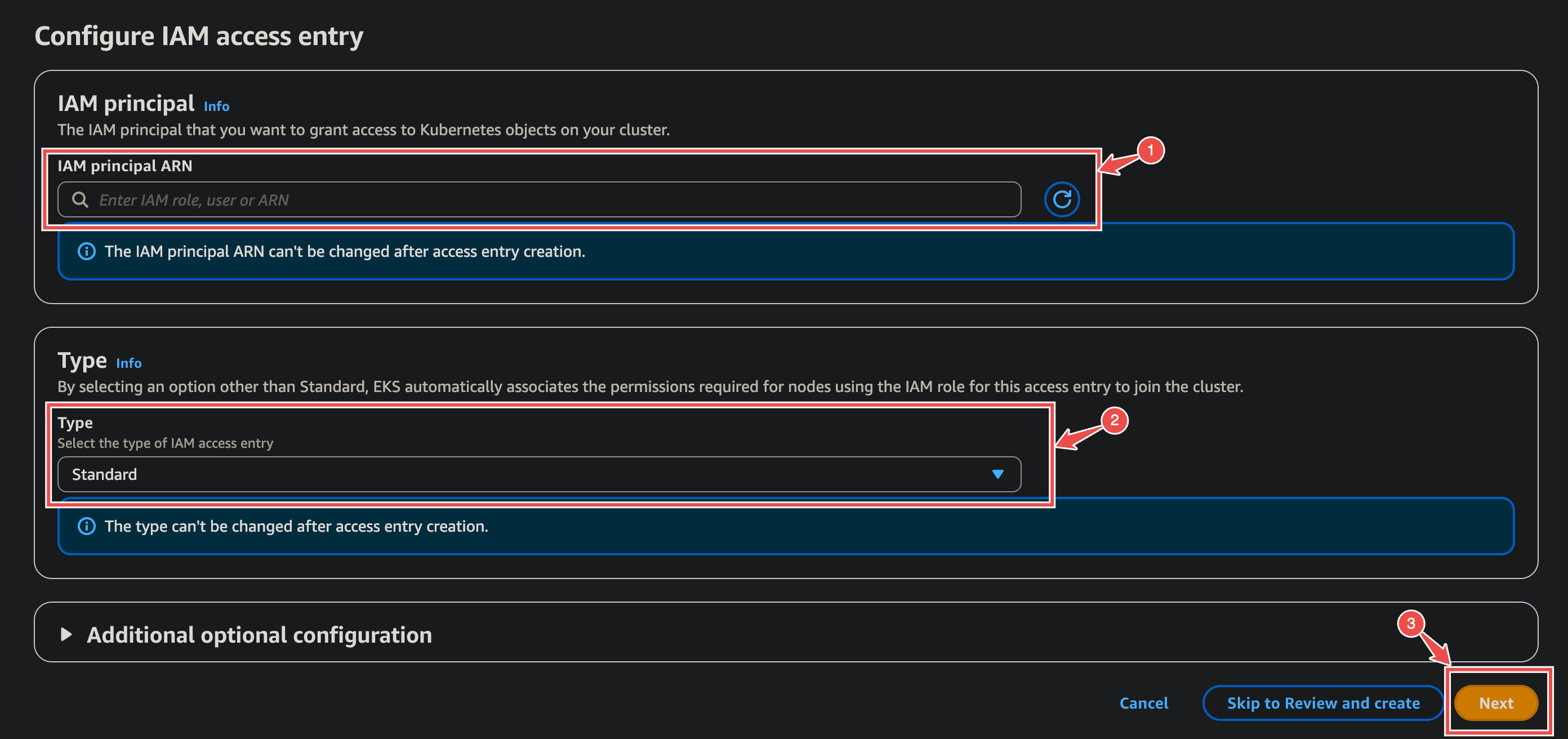
Create a new IAM Access Entry:
- Configure IAM Access Entry:
- IAM principal ARN: Enter the full ARN for the Neubird role or user that needs access.
- Type: Select Standard.
- Click Next.
- Configure IAM Access Entry:
-
Add Access Policies:
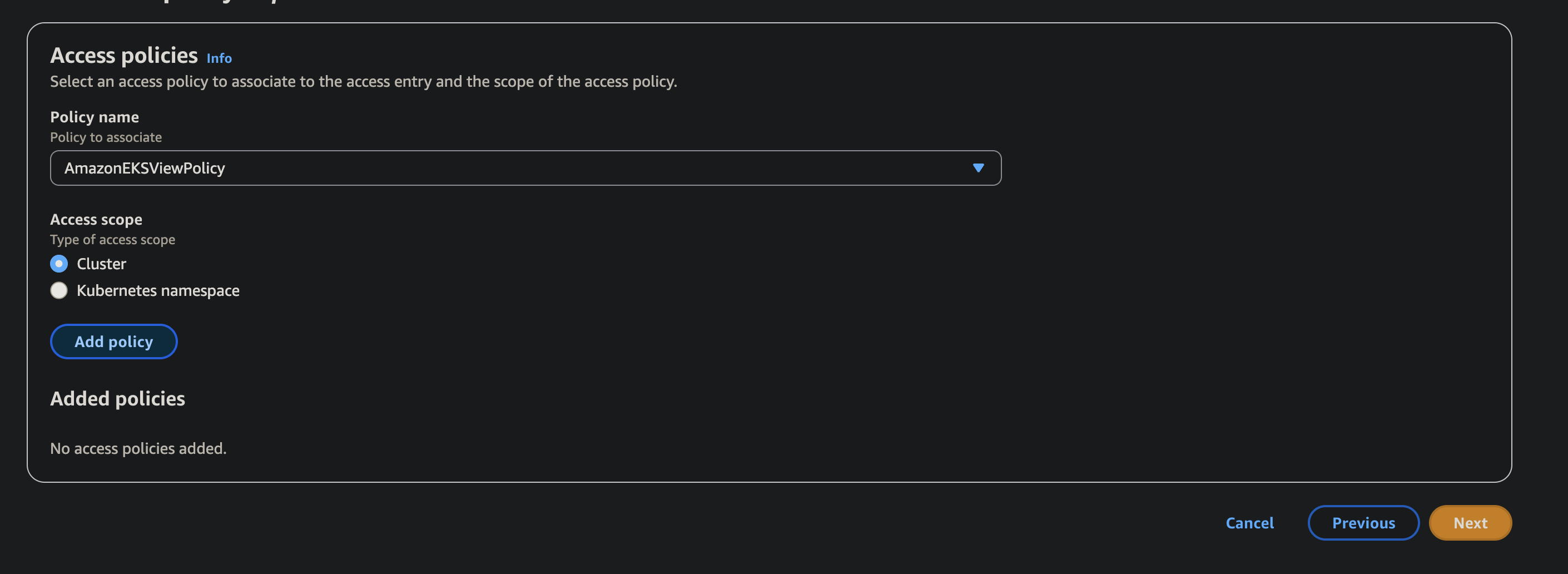
- In the Access policies section, click Add policy.
- Policy to associate: Select the required AWS-managed or custom policy, like
AmazonEKSViewPolicy, as it is the minimum required for our kubernetes access to work. - Access scope: Choose Cluster.
- Policy to associate: Select the required AWS-managed or custom policy, like
- In the Access policies section, click Add policy.
-
Review and Create:
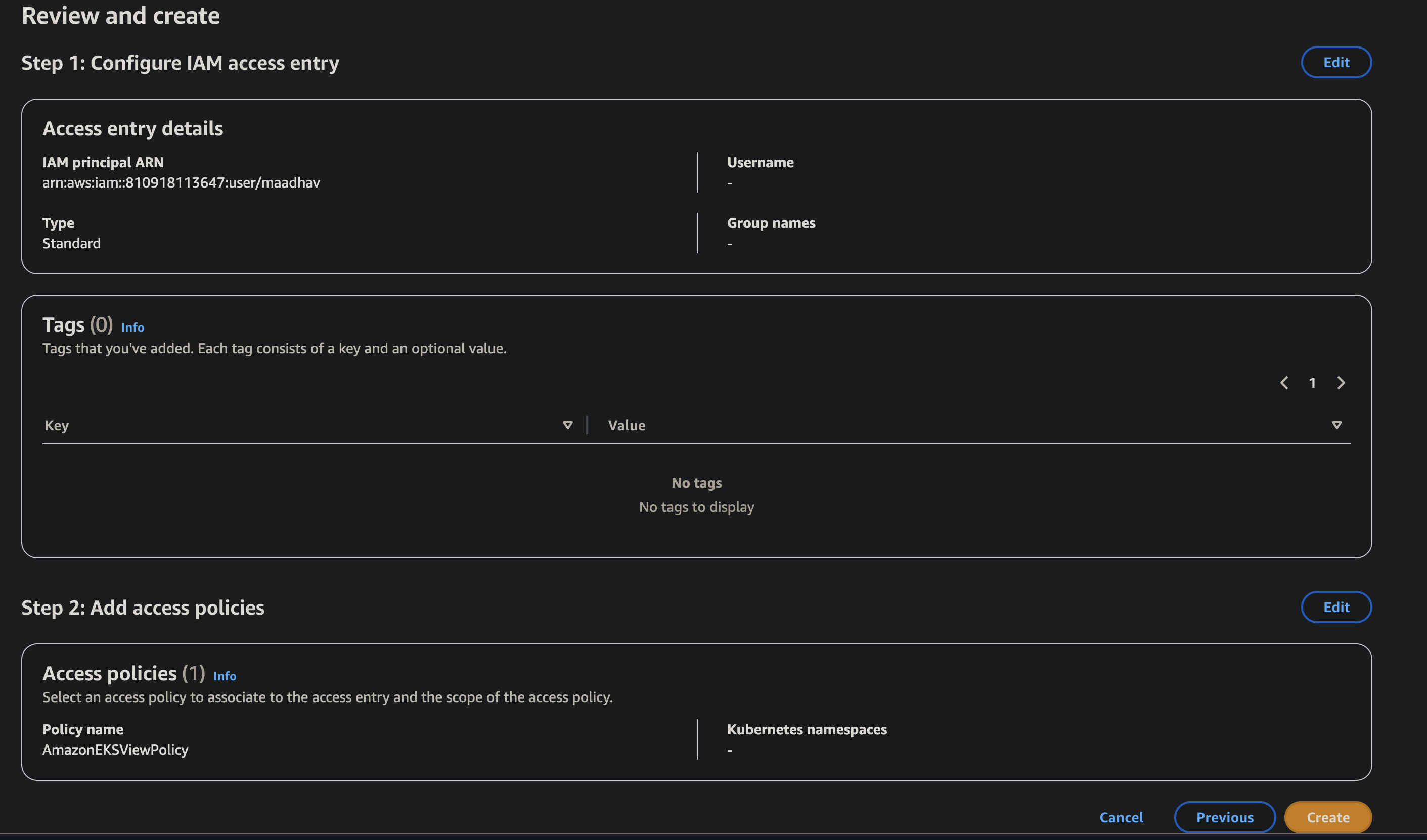
- Click Next to proceed to Review and create.
- Verify the details: The IAM principal ARN and the associated access policy (
AmazonEKSViewPolicy) should be listed. - Click Create to finalize the EKS Access Entry.
Step 3: Enable Configuration Change Telemetry
Fig.12 - A walkthrough of how to enable configuration change Telemetry
To keep an eye on the changes happening in your AWS environment, Hawkeye collects Configuration Change Telemetry using AWS CloudTrail.
This data helps monitor detailed configuration changes across your resources, clearly showing what’s been modified and when.
If you haven’t set up CloudTrail yet, no worries! Follow these steps to get it configured and ensure that the logs are delivered to a CloudWatch Log Group.
-
Create a CloudWatch Log Group:
-
Sign in to the AWS Management Console and navigate to the CloudWatch service.
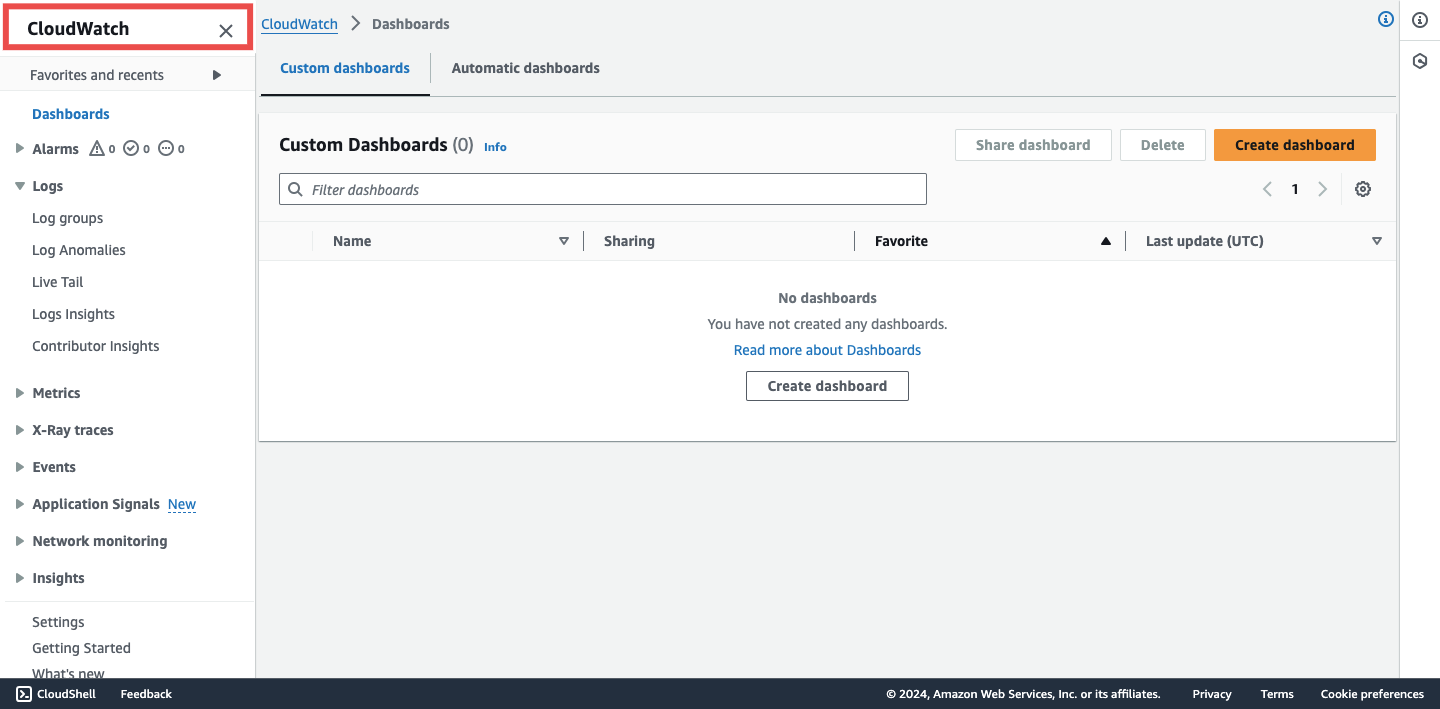
Fig.13 - Create a cloudwatch log group
-
In the left navigation pane, choose Logs > Log groups > Create log group.
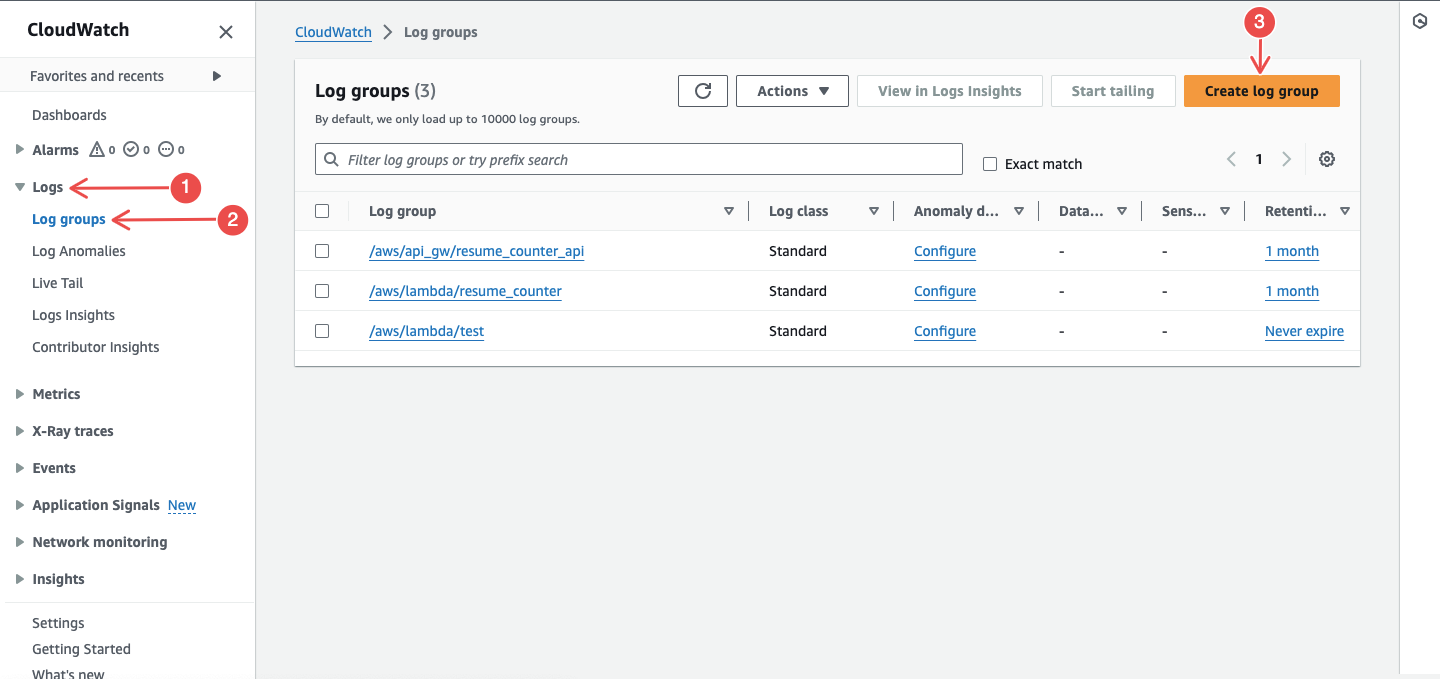
Fig.14 - Create log group
-
Enter a Log group name and then click Create.
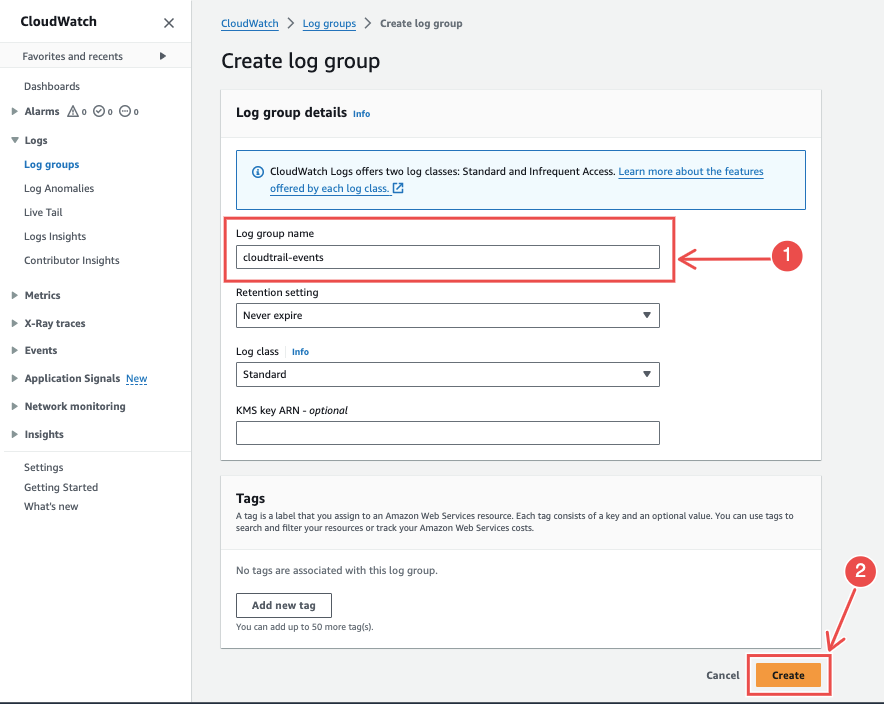
Fig.15 - Enter a log group name
-
-
Create a Trail in CloudTrail:
-
Navigate to the CloudTrail service and click on Create a trail.
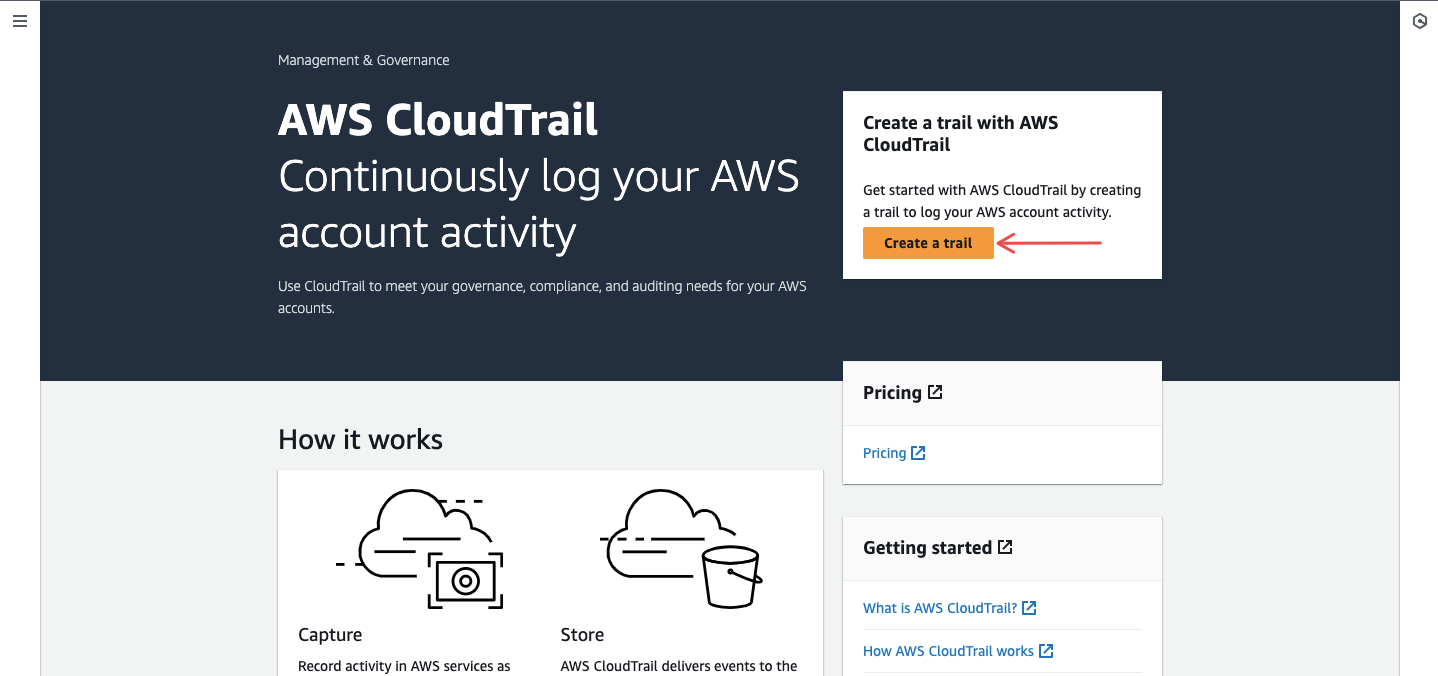
Fig.16 - Navigate to CloudTrail and click create trail
-
In the left navigation pane, choose Trails > Create trail.
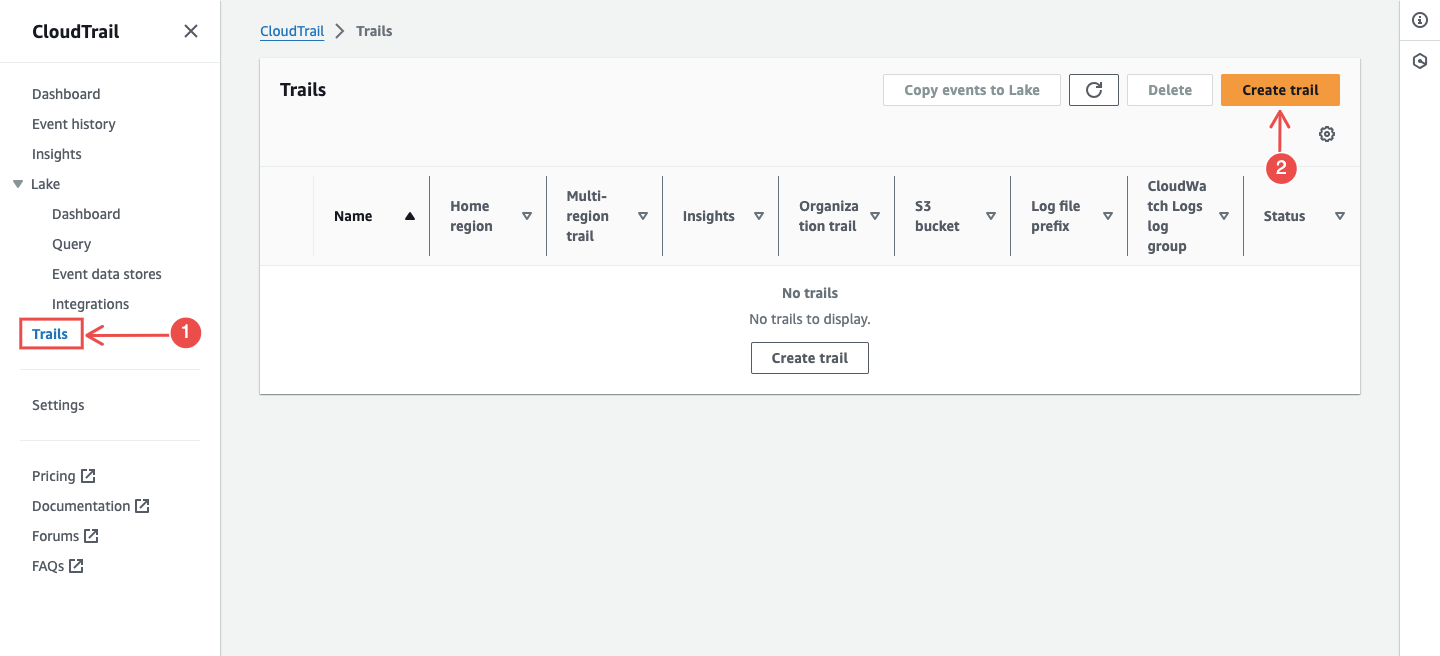
Fig.17 - Choose Trails
-
Enter a trail name, and for storage location, choose Create new S3 bucket.
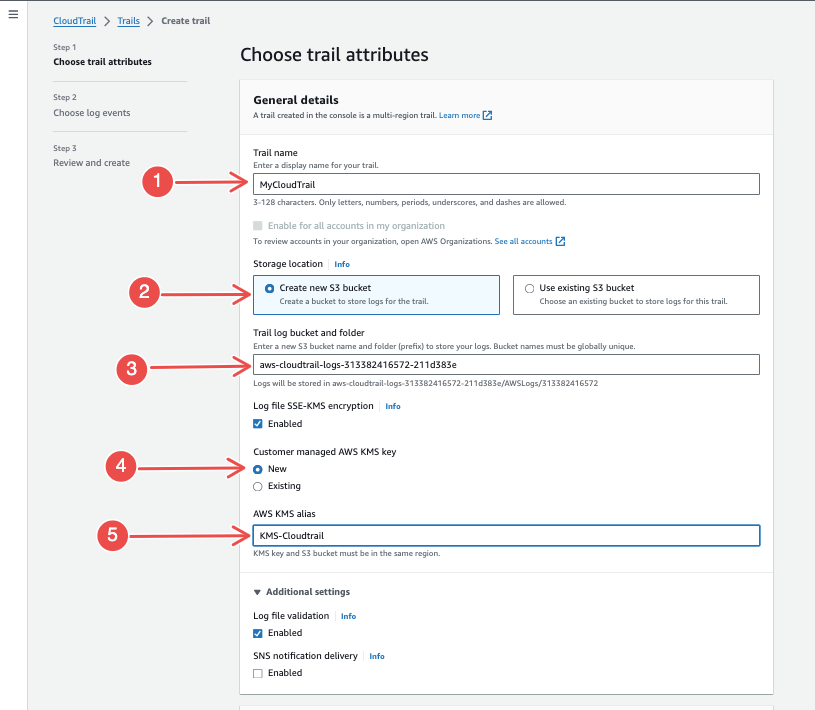
Fig.18 - Create new S3 bucket
-
Enable CloudWatch Logs, then enter the log group you just created.
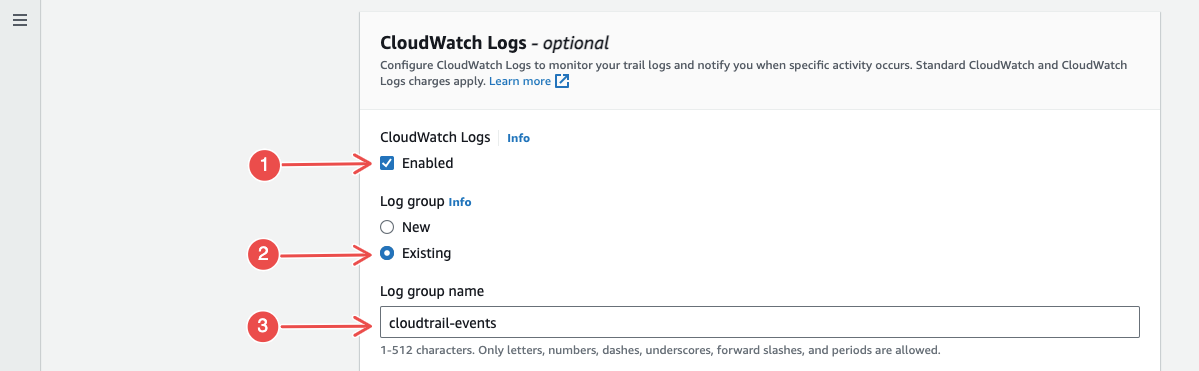
Fig.19 - Enable cloud watch
-
For IAM Role, choose New to create a new role, or select Existing to use a role.
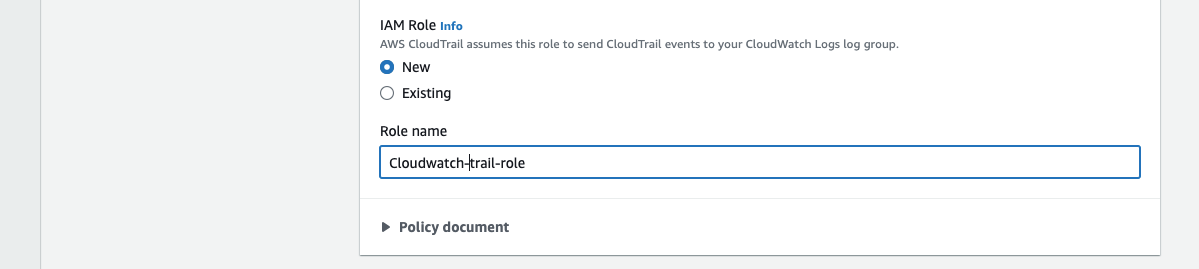
Fig.20 - Create new or select existing role
After this, click on the Next button at the bottom right corner.
-
For the event types, select all the options available and followed through with the configuration as displayed in the images below:
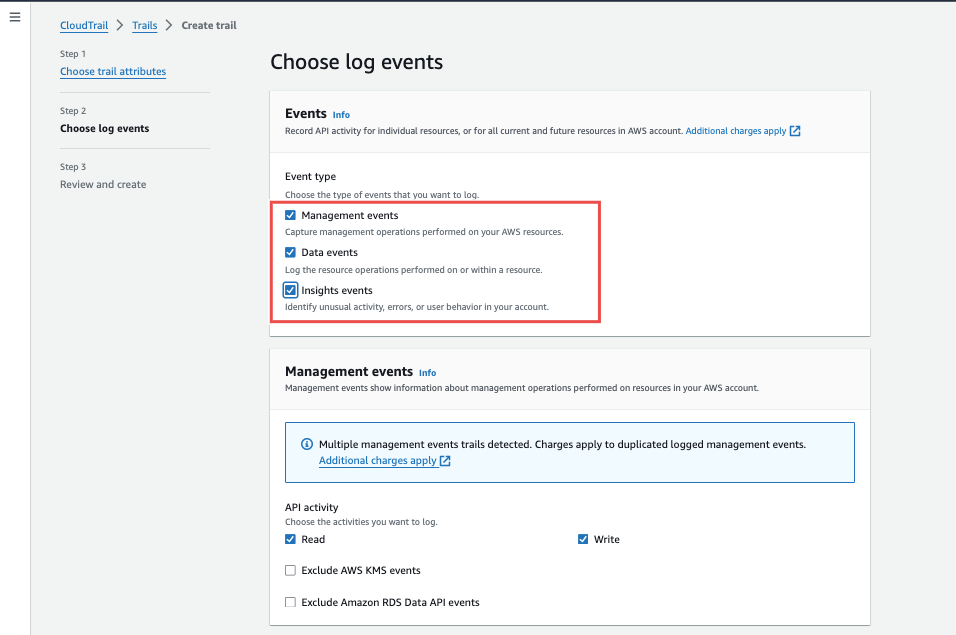
Fig.21 - Select all events type
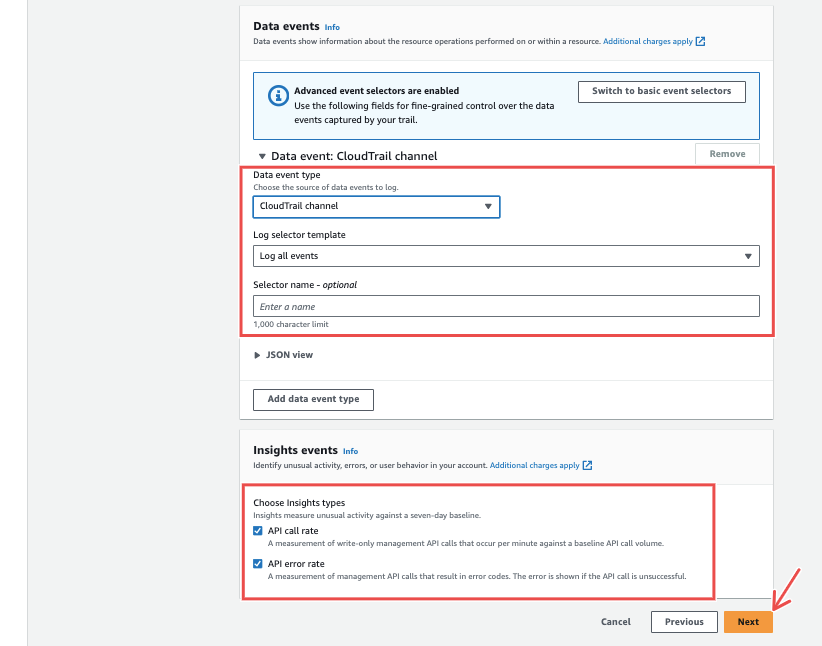
Fig.22 - Click next
After this, click on the Next button at the bottom right corner.
-
Review your configurations and click on the Create trail button.
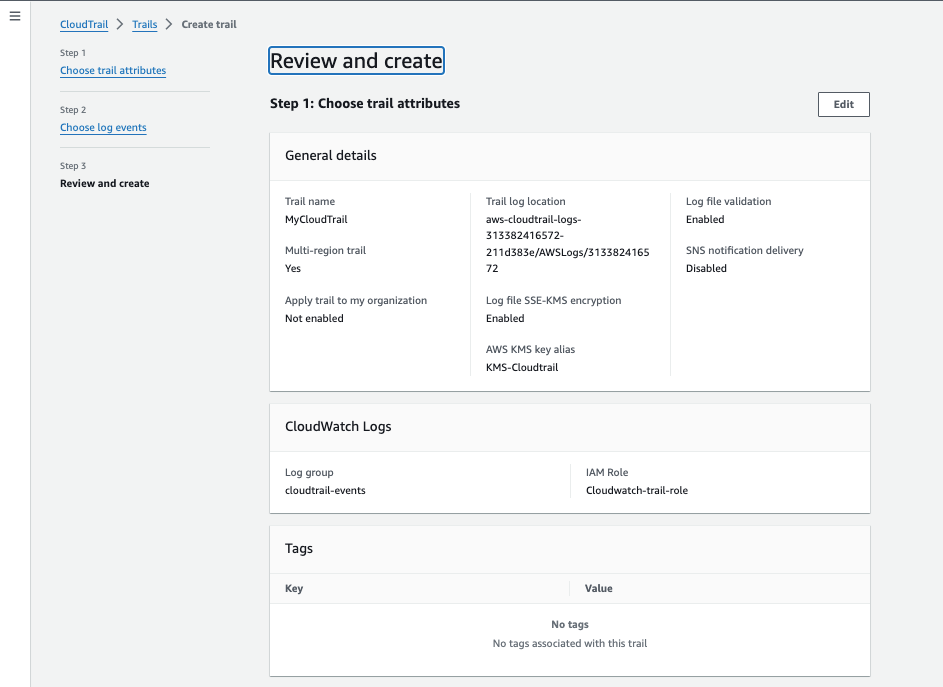
Fig.23 - Review configuration
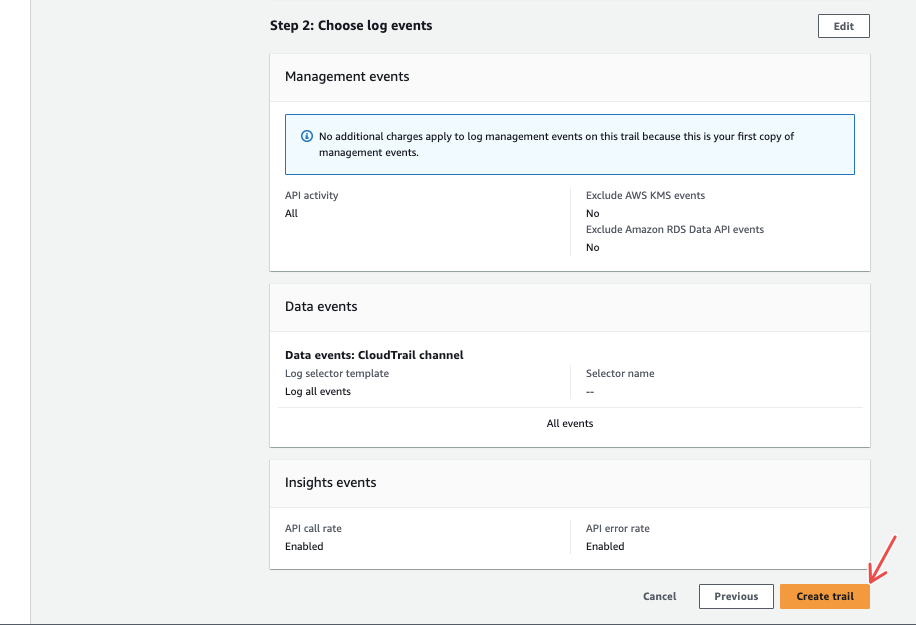
Fig.24 - Create trail
-
-
Configure Permissions for CloudTrail:
-
On the IAM console, navigate to Roles, and find the role attached to the CloudTrail service created above.
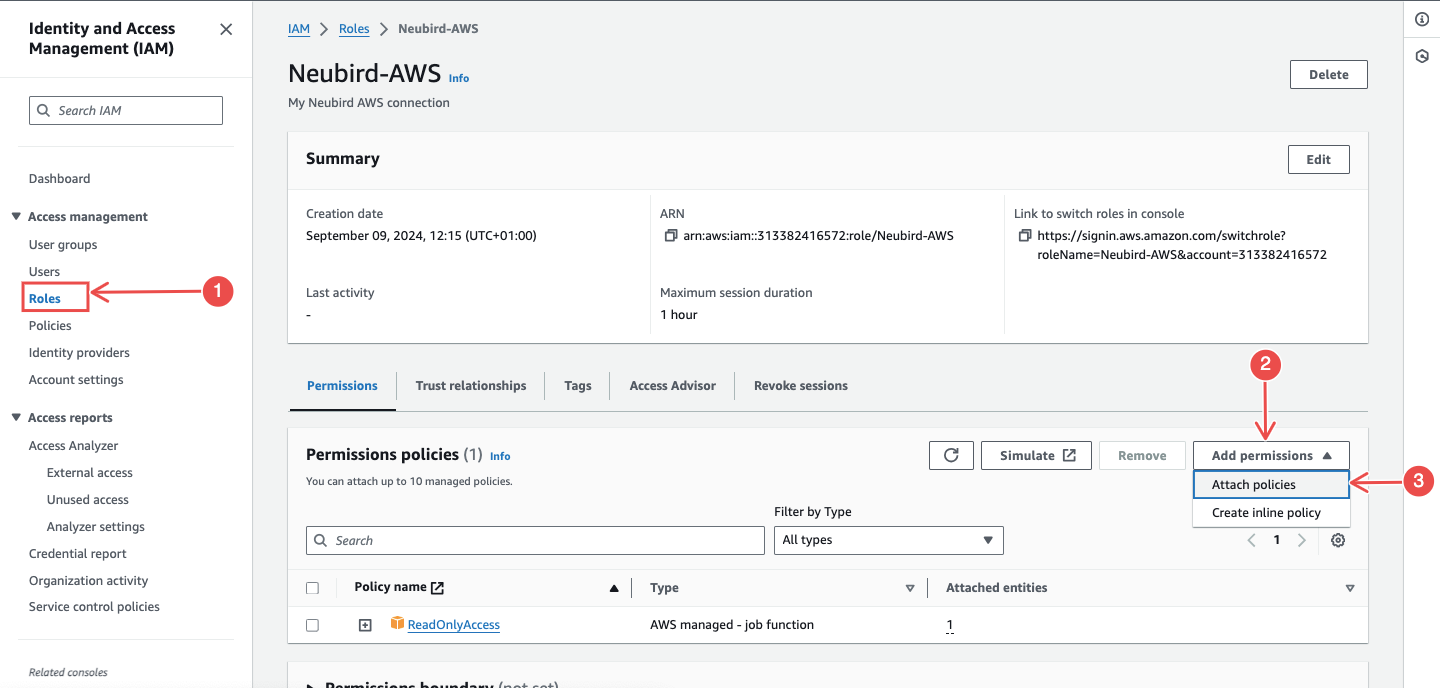
Fig.25 - Navigate to roles
-
Attach the following policies:
- AWSCloudTrail_FullAccess
- CloudWatchLogsFullAccess
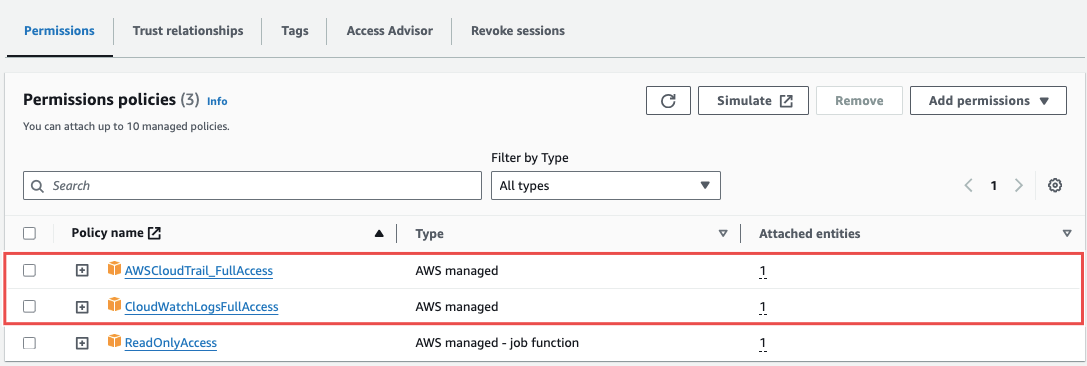
Fig.26 - Attach policies
-
-
Verify Log Delivery:
-
Go back to CloudWatch and check your created log group.
-
Ensure logs from CloudTrail are being delivered and new log streams are visible.
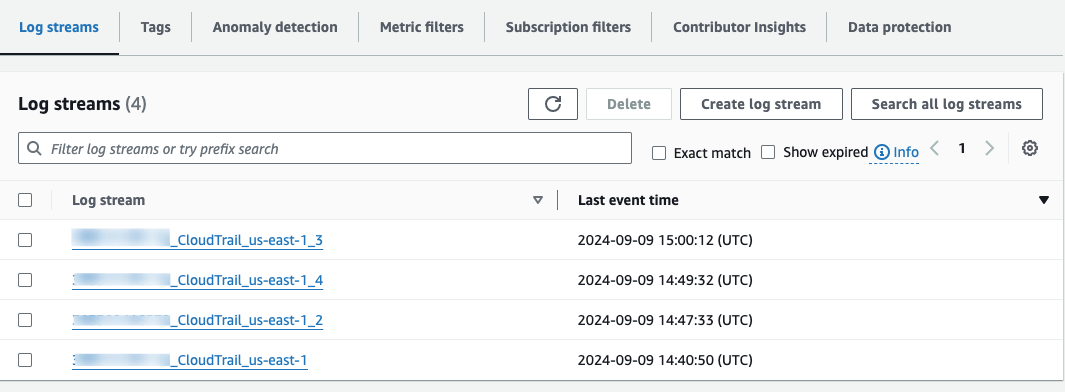
Fig.27 - Verify log delivery
-
-
Create CloudWatch Alarms (Optional but recommended):
-
In CloudWatch, navigate to Alarms > In alarm > Create alarm.
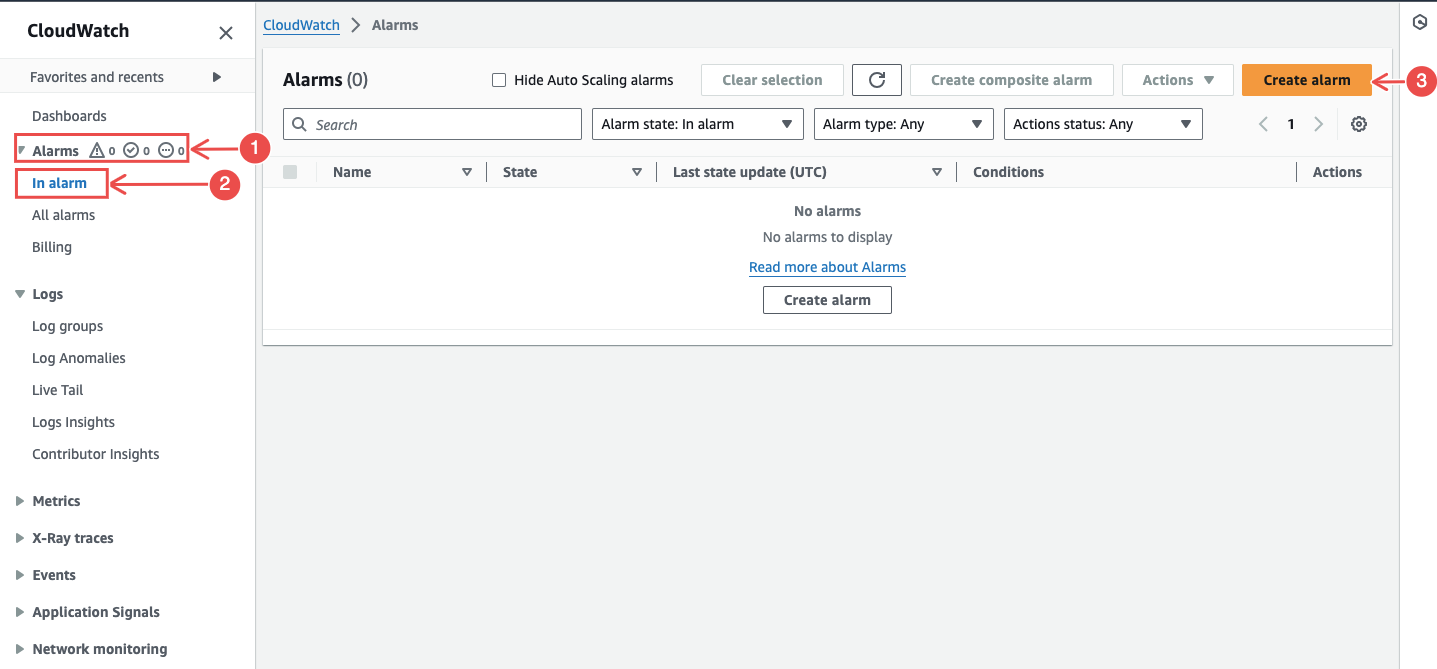
Fig.28 - Create CloudWatch alarm
-
Choose metrics related to CloudTrail logs, and click on Select metrics to follow through with the rest of the configuration process.
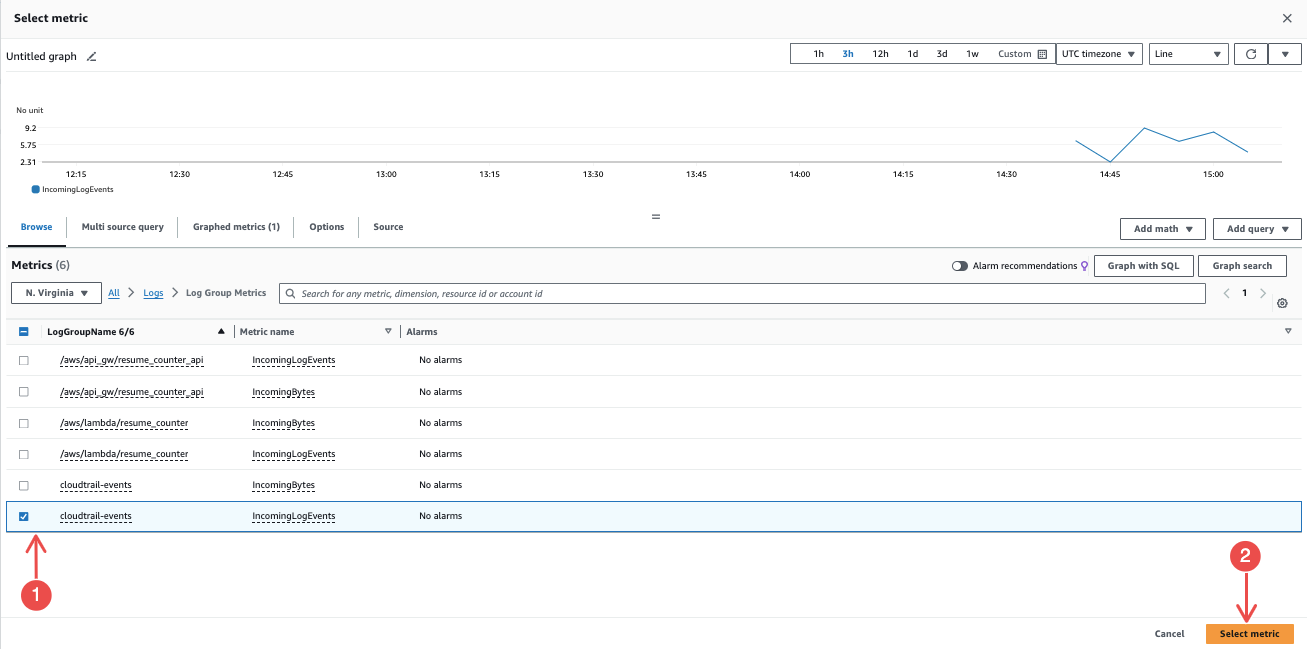
Fig.29 - Select metrics
-
Add Network Access Instructions To Kubernetes Access Setup
- Open the Networking tab within the cluster, select the Manage dropdown menu, choose Endpoint Access, and then click Save Changes to apply the updates.
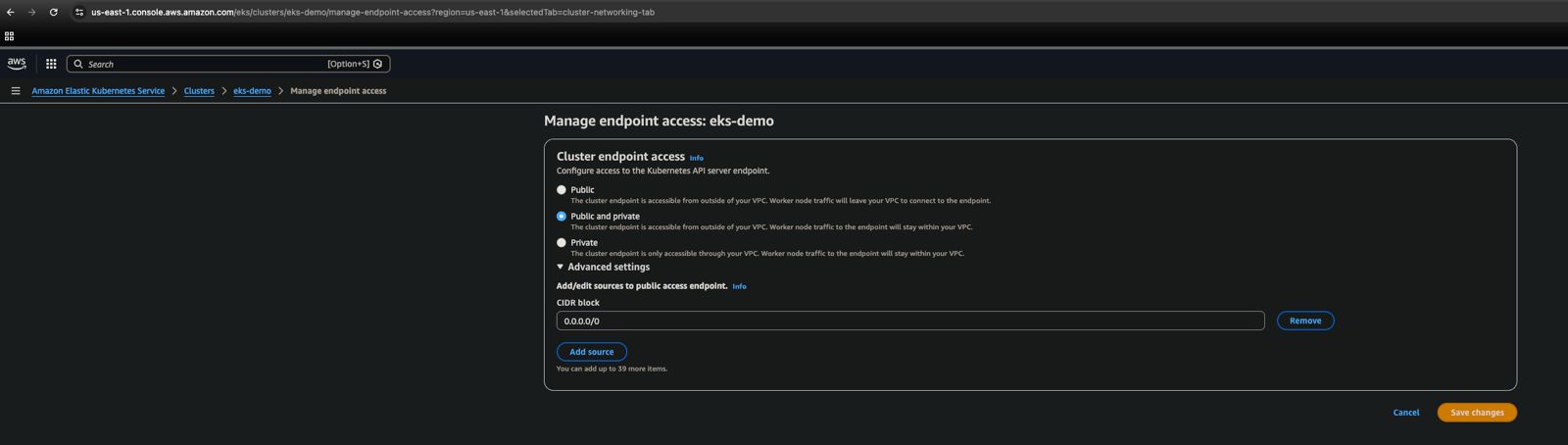
Fig.30 - Managing Endpoint Access in Kubernetes Cluster (EKS)
-
If the CIDR blocks in advanced settings here is not 0.0.0.0/0, then add the following block
54.236.215.157/32
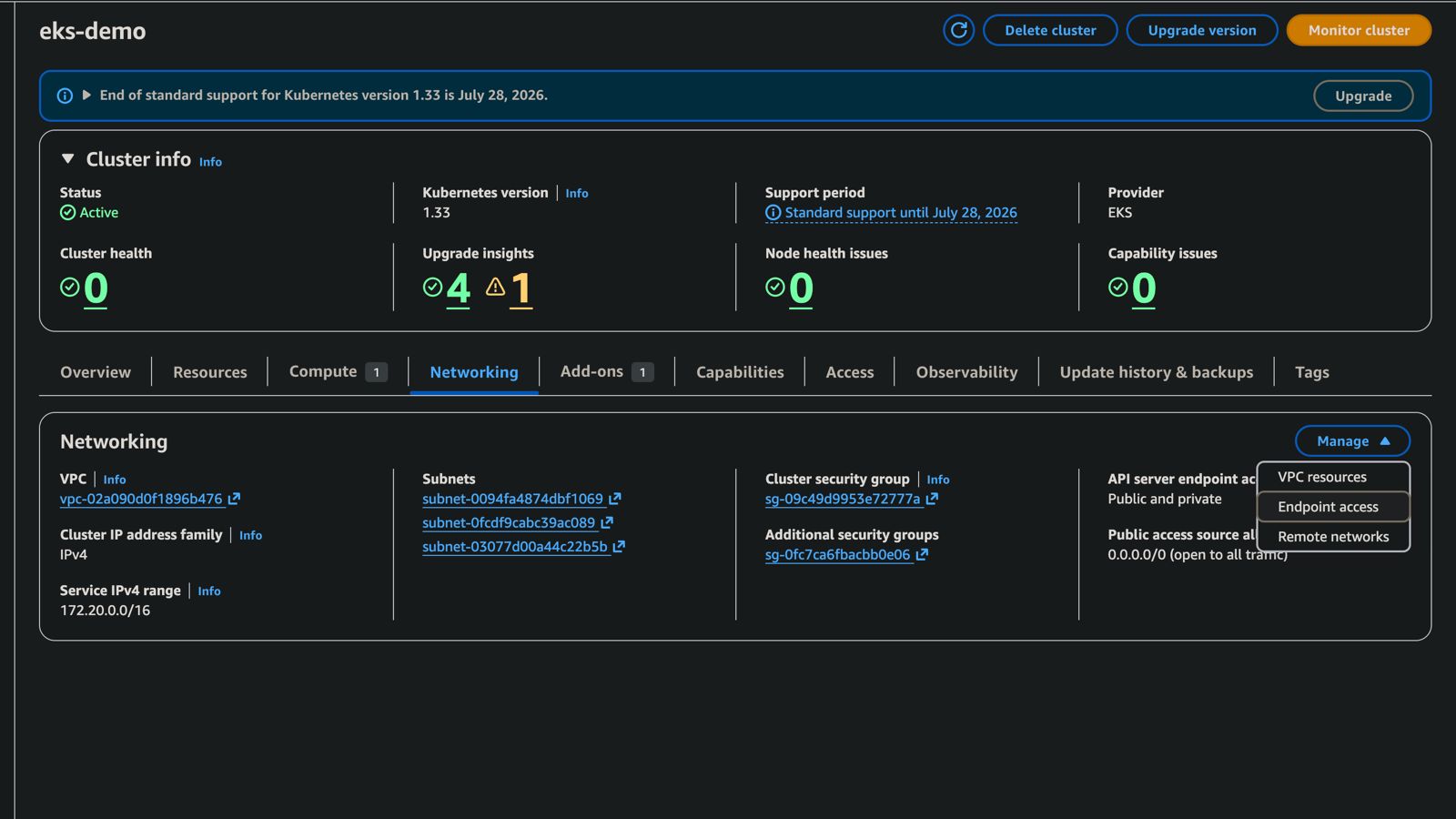
Fig.31 - EKS Cluster Networking Settings Dashboard
-
Alternatively, can run the CLI command with the blocks for your environment, plus the one above, are added at the end
Terminal window aws eks update-cluster-config --resources-vpc-config endpointPublicAccess=true,publicAccessCidrs=.....
Step 4: Add AWS connection to Hawkeye
There are 3 ways to add AWS to Hawkeye and each have their respective requirements. The 3 ways include:
1. Role ARN: Here, the required credentials include:
- Name: This is the name of the connection you’re about to create.
- Description (Optional): This gives an overview of the connection.
- Role ARN: The ARN of the role you created in Step 1.
- Regions: The region where you want Hawkeye to collect telemetry data.
see demo below:
Fig.32 - A walkthrough of how to add AWS connection to Hawkeye
With your IAM role ready, navigate to the Hawkeye dashboard and follow these next steps:
-
Navigate to the connections tab: On the dashboard, navigate to the Connections section and select the New Connection card.
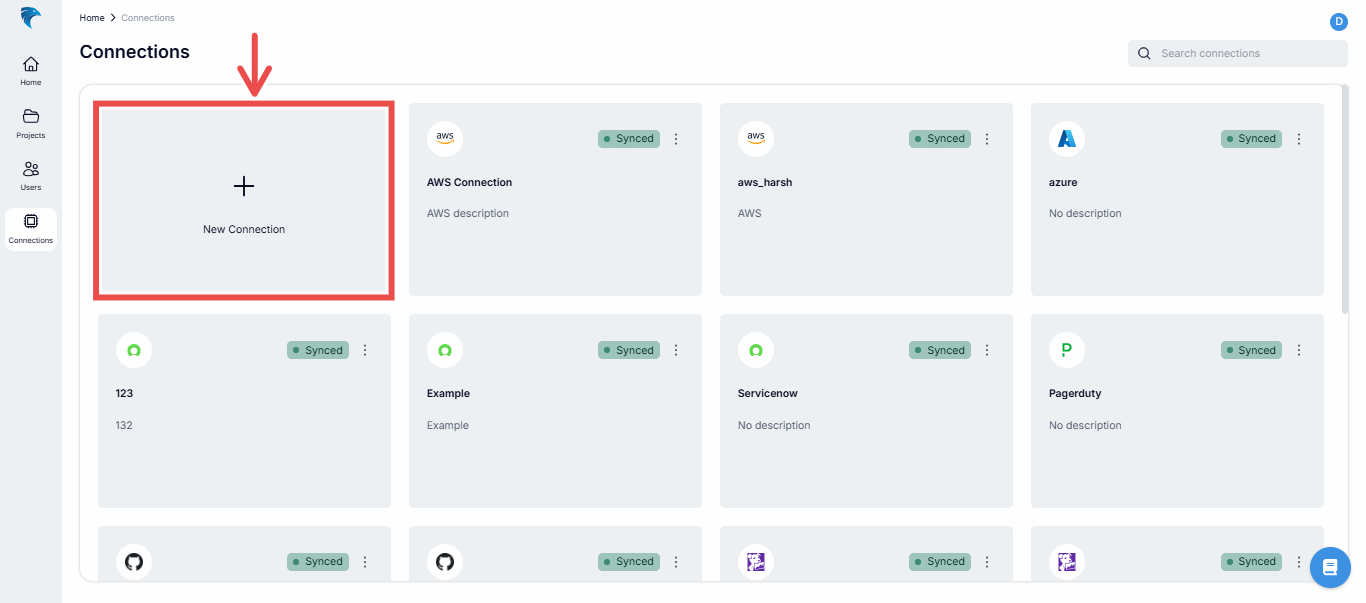
Fig.33 - New connection
-
Select AWS connection: Select Amazon Web Services from the list of available connections.
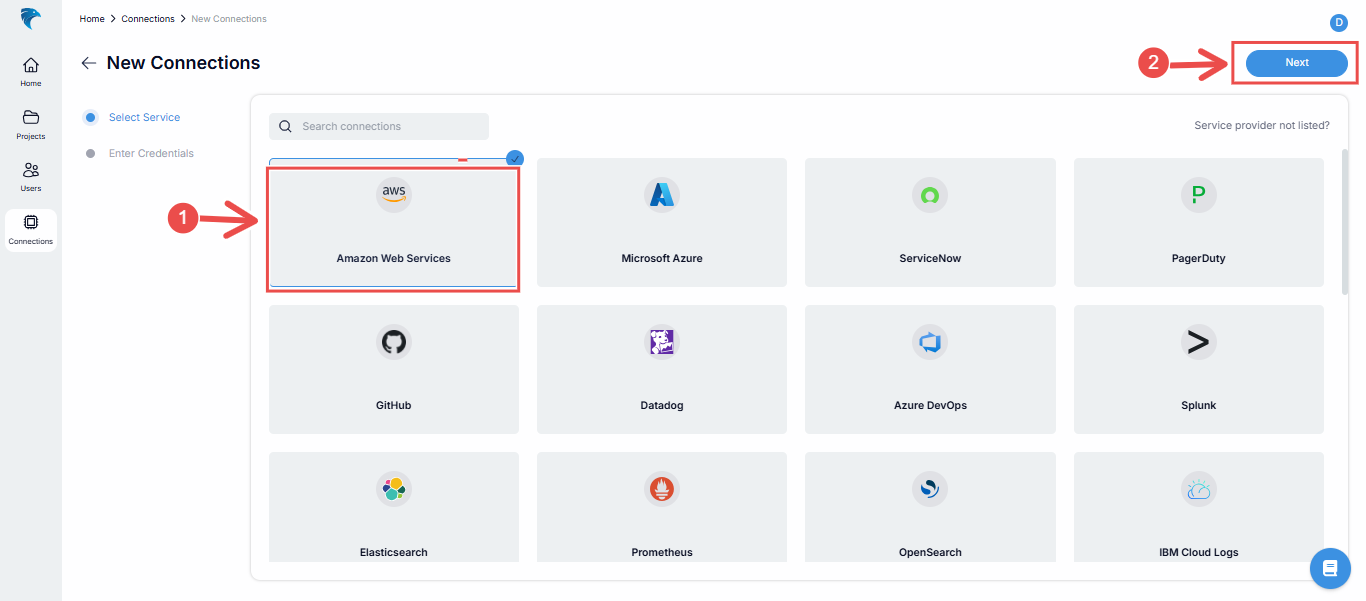
Fig.34 - Select AWS connection
After this, click on the Next button in the top right corner.
-
Enter credentials: Provide the following credentials:
-
Name: This is the name of the connection you’re about to create.
-
Description (Optional): This gives an overview of the connection.
-
Role ARN: The ARN of the role you created in Step 1.
-
Regions: The region where you want Hawkeye to collect telemetry data.
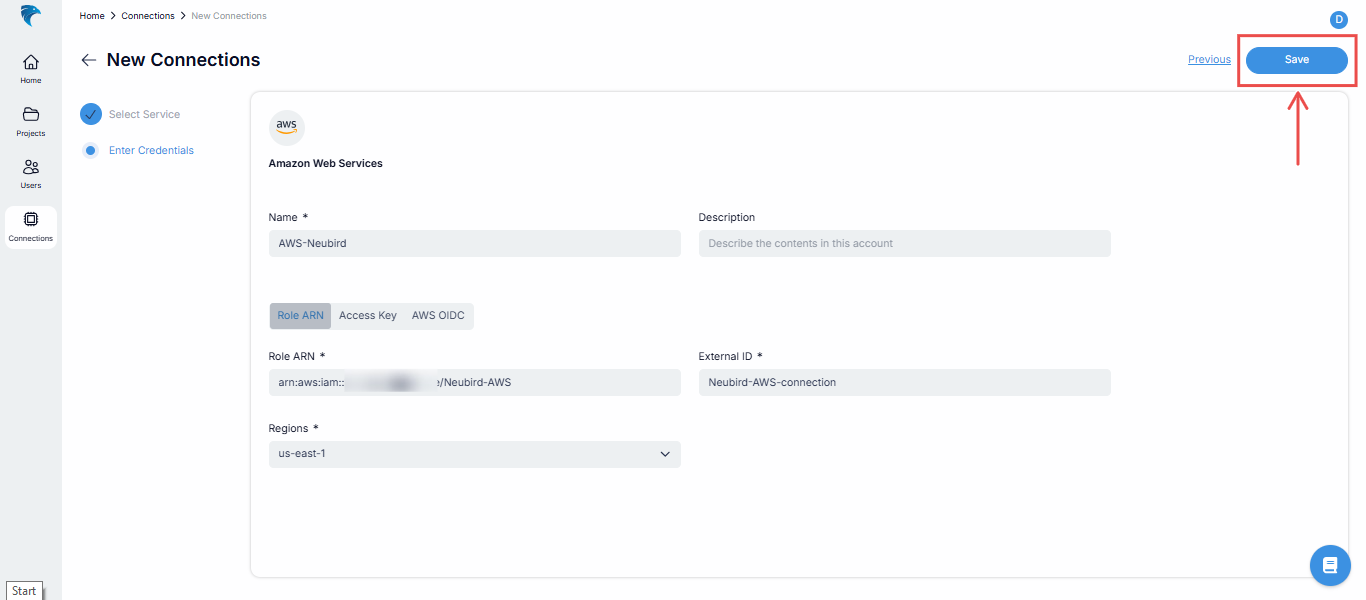
Fig.35 - Enter credentials
Verify all the credentials are correct and click the Save button at the top right corner.
-
-
Confirm that the AWS connection was successfully created.
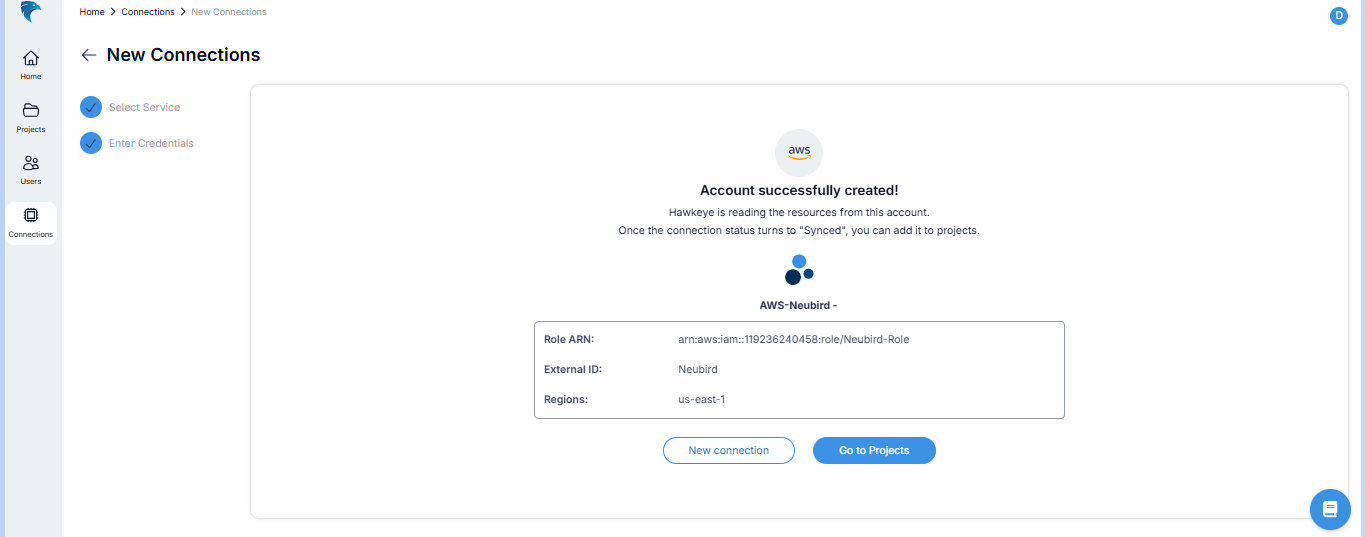
Fig.36 - Confirm AWS connection was successfully created
-
On the list of connections, you should see the new connection card display like this:
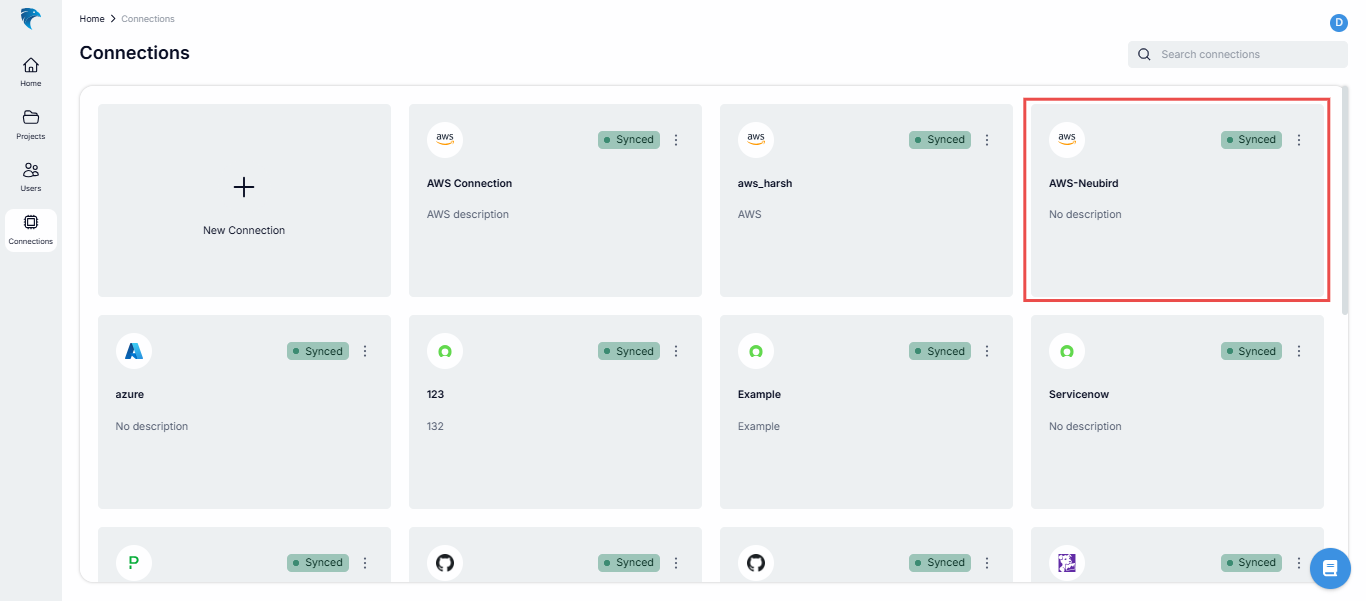
Fig.37 - New connection created
2. Access key: This option requires:
- Name: This is the name of the connection you’re about to create.
- Description (Optional): This gives an overview of the connection.
- Access Key ID: Access key ID from your AWS account
- Access Key Secret: Access key secret from your AWS account
- Regions: The region where you want Hawkeye to collect telemetry data.
see demo below:
Fig.38 - A walkthrough of how to add connection with access key
3. AWS OIDC: The AWS OIDC option requires:
- Name: This is the name of the connection you’re about to create.
- Description (Optional): This gives an overview of the connection.
- Regions: The region where you want Hawkeye to collect telemetry data.
- To complete this step, you’ll be required to log connect you AWS account. see demo below:
Fig.39 - A walkthrough of how to add connection with AWS OIDC