
Splunk Cloud
Connecting Hawkeye to your Splunk Cloud environment allows us to gather important telemetry data, such as logs and events, from your Splunk Cloud services. This data will enable detailed monitoring and analysis within Hawkeye.
Step 1: Generate API Key in Splunk Cloud
Fig.1 - A walkthrough of how to generate API key in Splunk Cloud
To connect Splunk Cloud with Hawkeye, you first need to generate an API key from your Splunk instance. The following steps will guide you on how you can do it:
-
Log in to Splunk Cloud: Access your Splunk Cloud instance by logging in with your admin credentials.
-
Navigate to API Settings: Go to the Settings menu and click on Data Inputs.
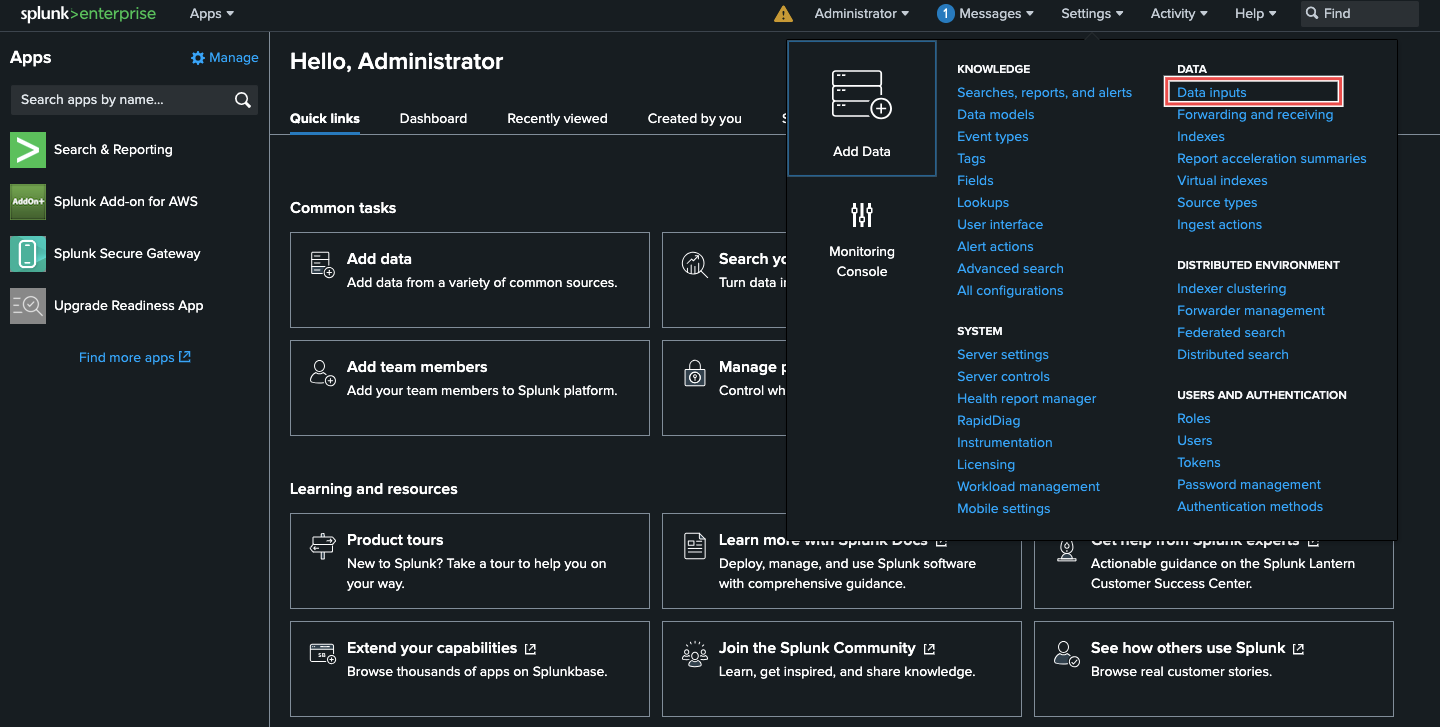
Fig.2 - Splunk Cloud API settings
-
Select HTTP Event Collector (HEC): In the Data Inputs page, select HTTP Event Collector.
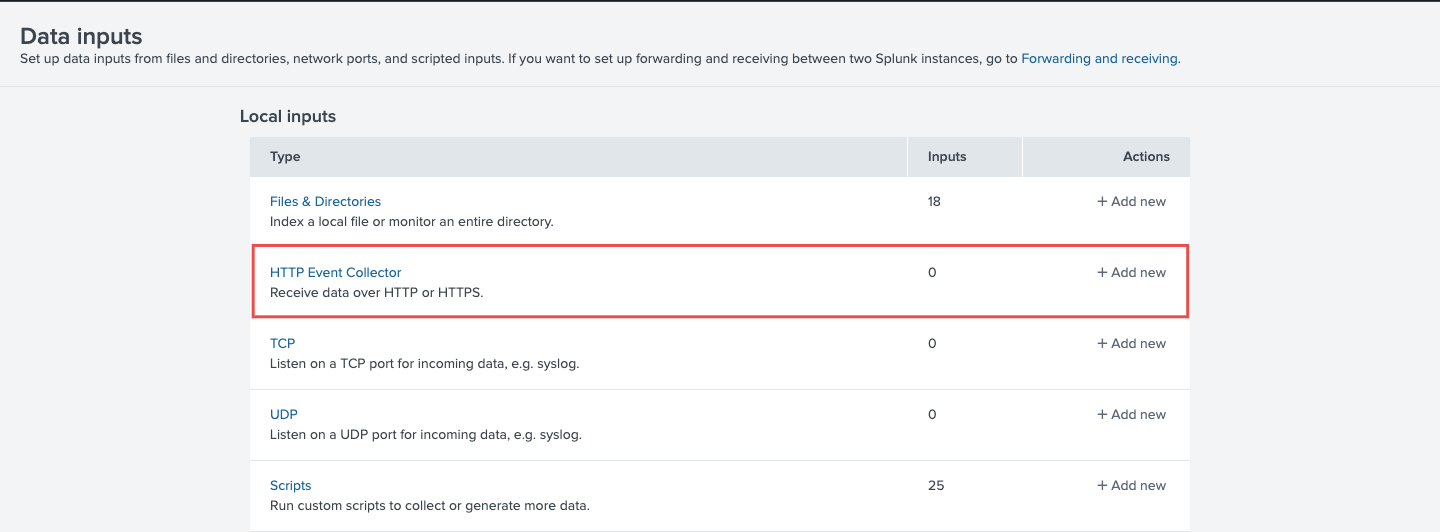
Fig.3 - Splunk Cloud HTTP Event Collector
-
Create New Token:
Click on New Token to generate a new API key for Hawkeye.

Fig.4 - Splunk Cloud create new token
Enter a name for the token and choose Enable Indexer Acknowledgment for reliable log ingestion.
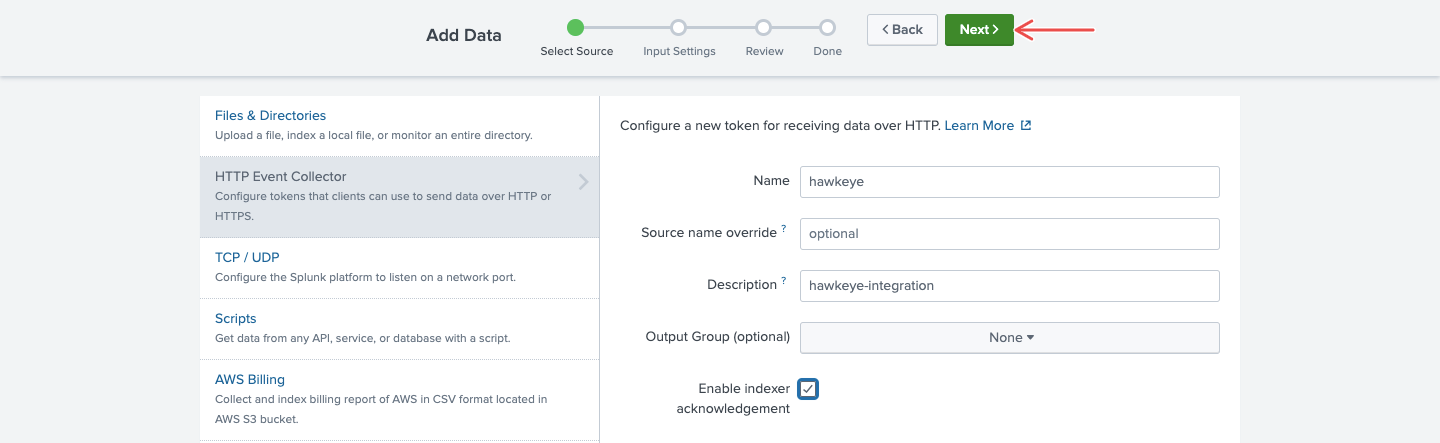
Fig.5 - SplunK Cloud Enable Indexer Acknowledgement
Specify the source types.
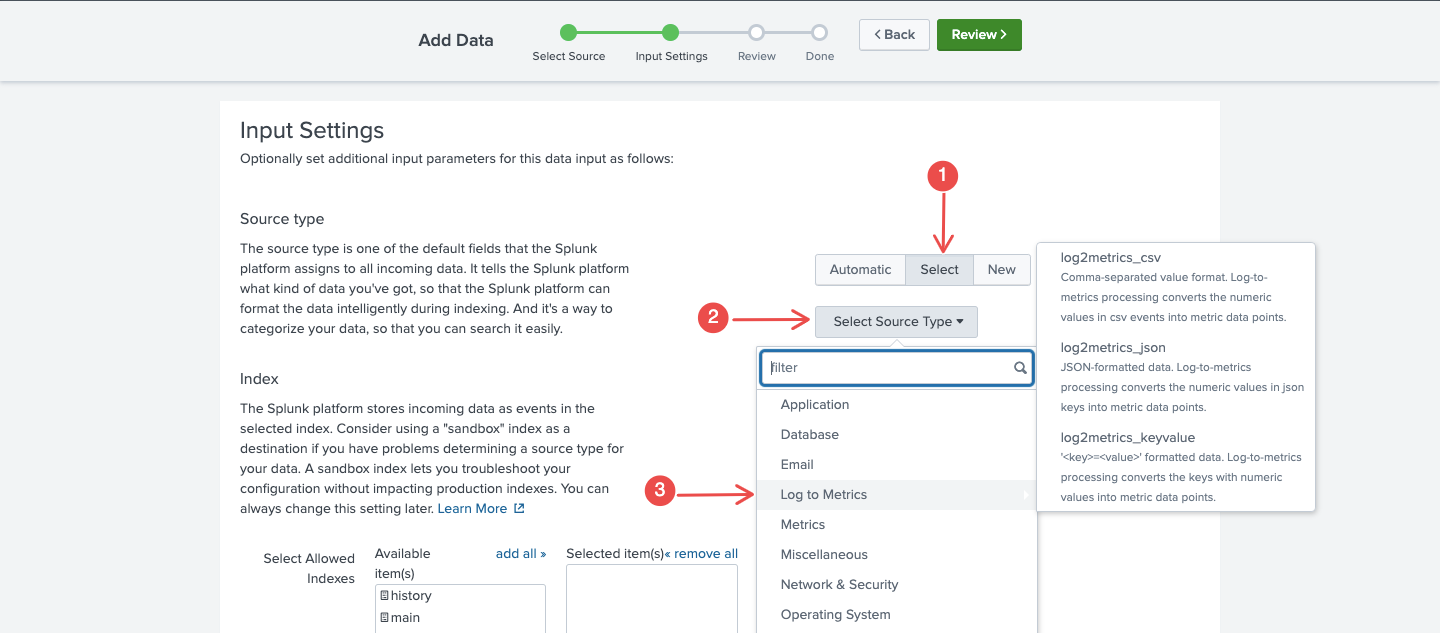
Fig.6 - Specify source types
-
Copy the API Key: After creating the token, copy the generated API key. You’ll need it for the next step in the Hawkeye setup.
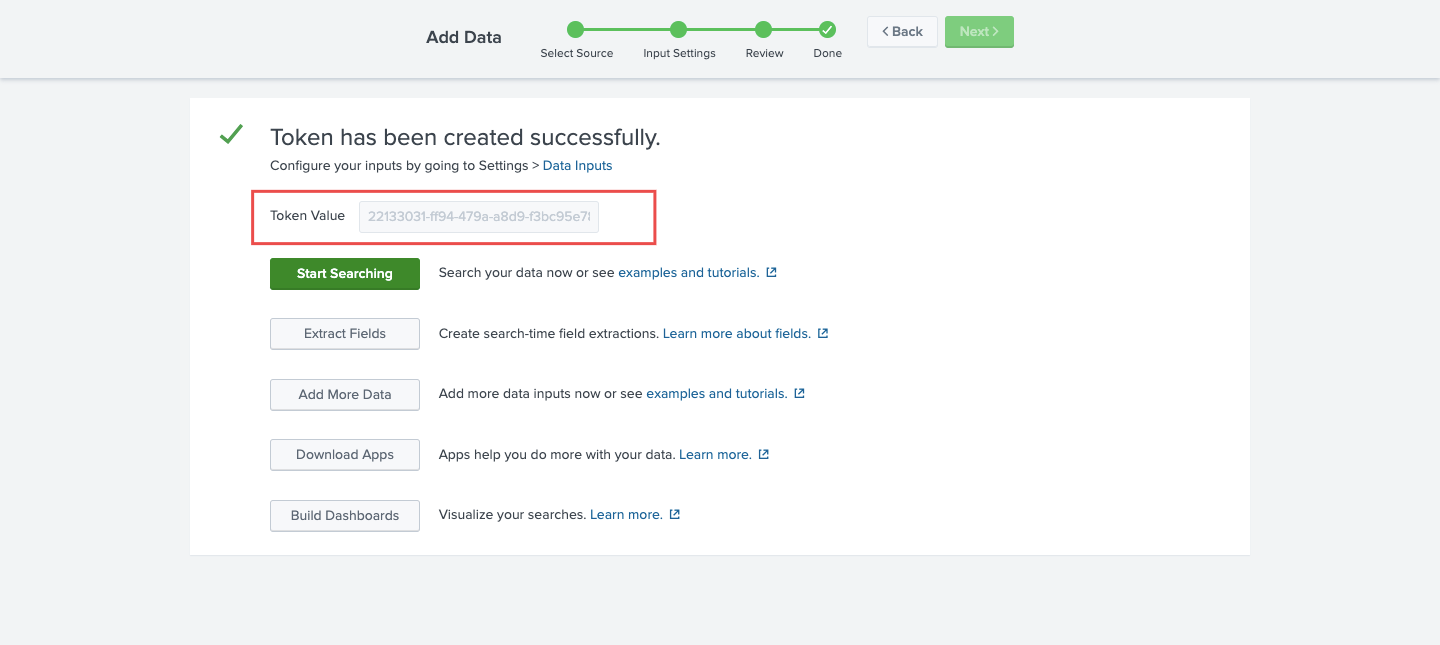
Fig.7 - Copy Splunk Cloud API key
-
Get the URL: Navigate to your Splunk Cloud instance homepage. Copy the base URL from the browser (e.g.,
https://<instance>/app/launcher/home).
Step 2: Add Splunk Cloud Connection to Hawkeye
Fig.8 - A walkthrough of how to add Splunk Cloud connection to Hawkeye
Now that you have your API key and Splunk URL, follow these steps to integrate Hawkeye:
-
Navigate to the Connections Tab: In your Hawkeye dashboard, go to the Connections section and click on New Connection.
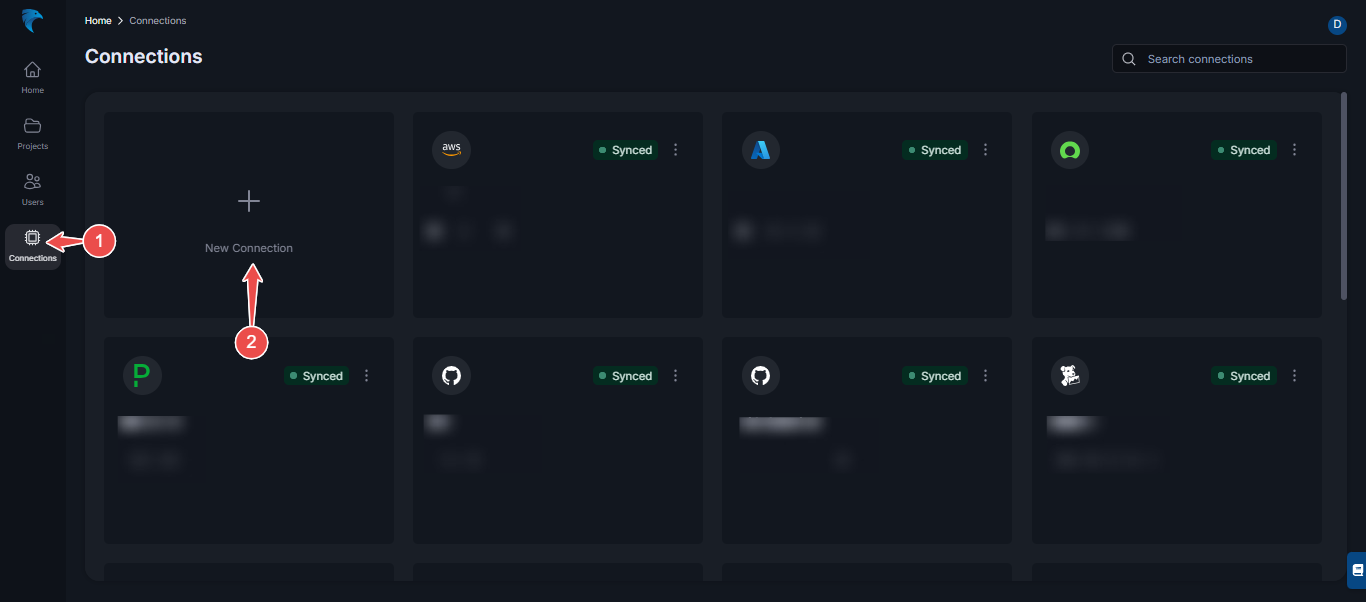
Fig.10 - Create new connection for Spunk Cloud
-
Select Splunk Cloud: Choose Splunk Cloud from the list of available connections.
-
Enter Credentials:
- Name: Provide a name for the Splunk Cloud connection.
- Description: Add a brief description of this integration.
- Splunk URL: Paste the Splunk Cloud URL you copied in Step 1.
- API Key: Enter the API key you generated from Splunk Cloud.
-
Save and Confirm: Verify the information and click Save to create the connection. If successful, you will see the connection card showing your Splunk Cloud setup.