
Add Teleport
If your telemetry source runs behind a firewall or inside a VPC and is not publicly accessible, you can use Teleport to securely expose your telemetry application to Hawkeye.
Prerequisites
Before proceeding, ensure that you have completed the following:
-
Install the Teleport agent
- The Teleport agent must be installed within the private network where your telemetry application is running.
- This agent enables secure communication between your application and the Teleport server.
-
Create a Teleport bot
- Create a Teleport bot and assign it a role that grants access only to the specific telemetry applications or connections you intend to integrate with Hawkeye.
-
Generate a bot join token
- Create and save a bot join token for the Teleport bot. You will need this token when configuring the connection in Hawkeye.
Steps to add Teleport details in Hawkeye connection
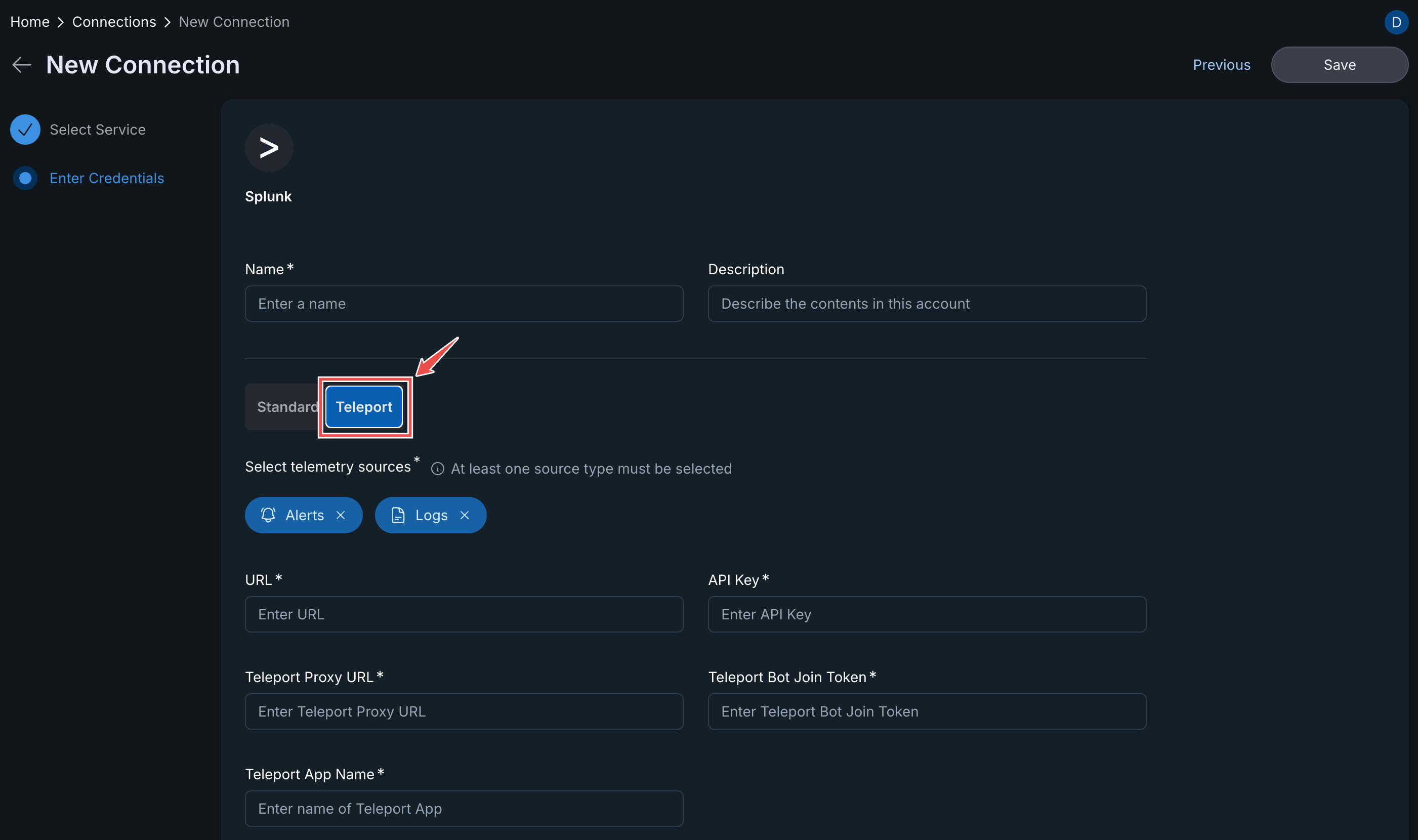
Fig.1 - Add add Teleport details in Hawkeye connection
-
Navigate to the Teleport tab
- On the Create or Edit Connection page, switch to the Teleport tab for the connection you want to configure.
-
URL (Application URL)
-
Enter the application URL provided by Teleport.
-
Typically, Teleport generates a subdomain that matches the application name defined in your Teleport agent configuration.
-
Example:
https://splunk.teleport.tools.example
-
-
Teleport Proxy URL
-
Enter your Teleport server URL without the HTTP/HTTPS scheme, but including the secure port.
-
Example:
example.teleport.com:443
-
-
Teleport App Name
-
Enter the exact application name you used in your Teleport agent configuration.
-
Example:
splunk
-
-
Teleport Bot Join Token
- Paste the bot join token you generated in the prerequisite steps.