
Atlassian
Connecting Hawkeye to your Atlassian account lets you track issues and project activities in real time.
With this integration, you can view data like issue statuses, project progress, and sprint metrics on the Hawkeye dashboard.
To connect Atlassian with Hawkeye, you will need a JiAtlassianra API Token and your Atlassian Instance URL.
Step 1: Setup Atlassian Integration
Fig.1 - A walkthrough of how to setup Atlassian integration with Hawkeye
To retrieve the required credentials, follow these steps to set up a Atlassian API Token:
-
Navigate to Atlassian API token page: Log into your Atlassian account and go to the API tokens page. This is where you can generate and manage API tokens.
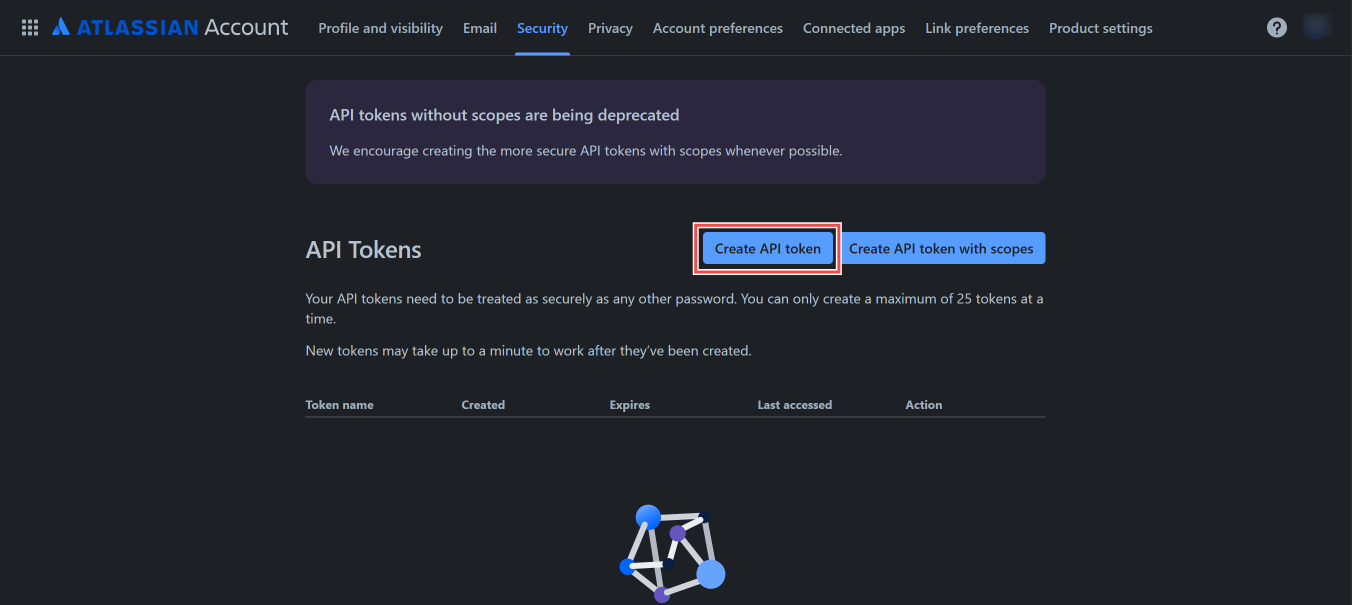
Fig.2 - Atlassian API token page
Click on Create API Token.
-
Create API token: Provide a name for the token to identify it later.
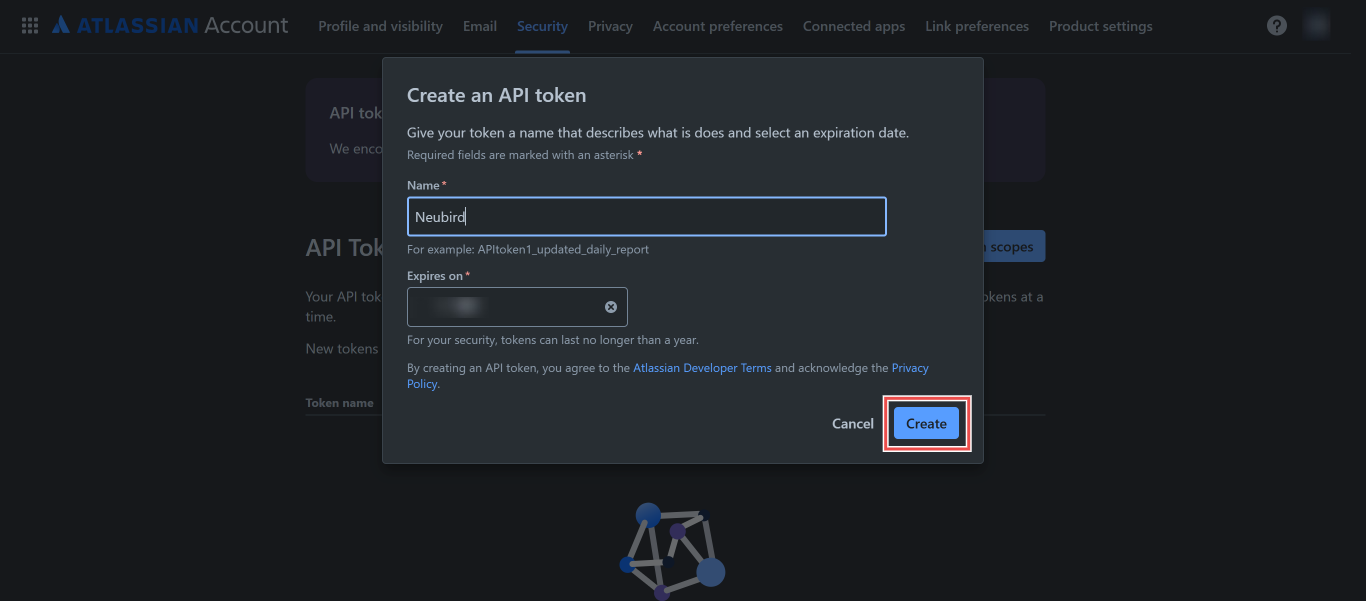
Fig.3 - Create Atlassian API token
Click on Create.
-
Copy API token: Once generated, click on Copy to save the token.
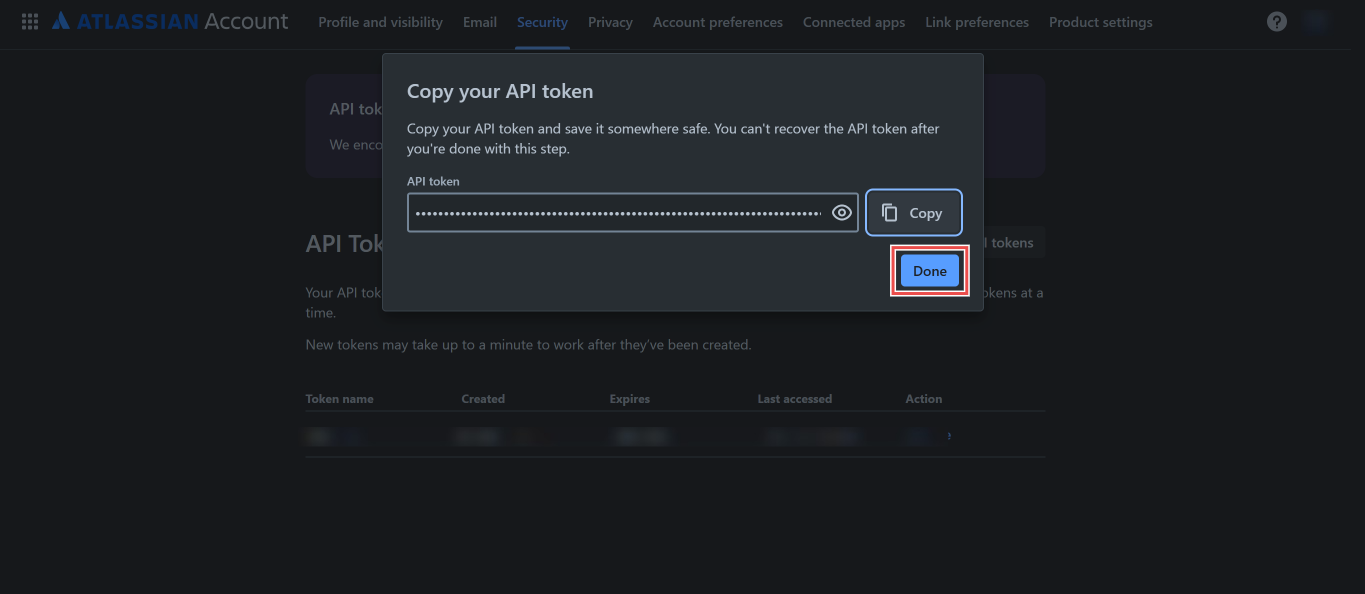
Fig.4- Copy API token
Store this token securely, as it won’t be displayed again.
-
Retrieve Atlassian instance URL: Open your Atlassian instance in your browser (e.g.,
https://yourcompany.atlassian.net).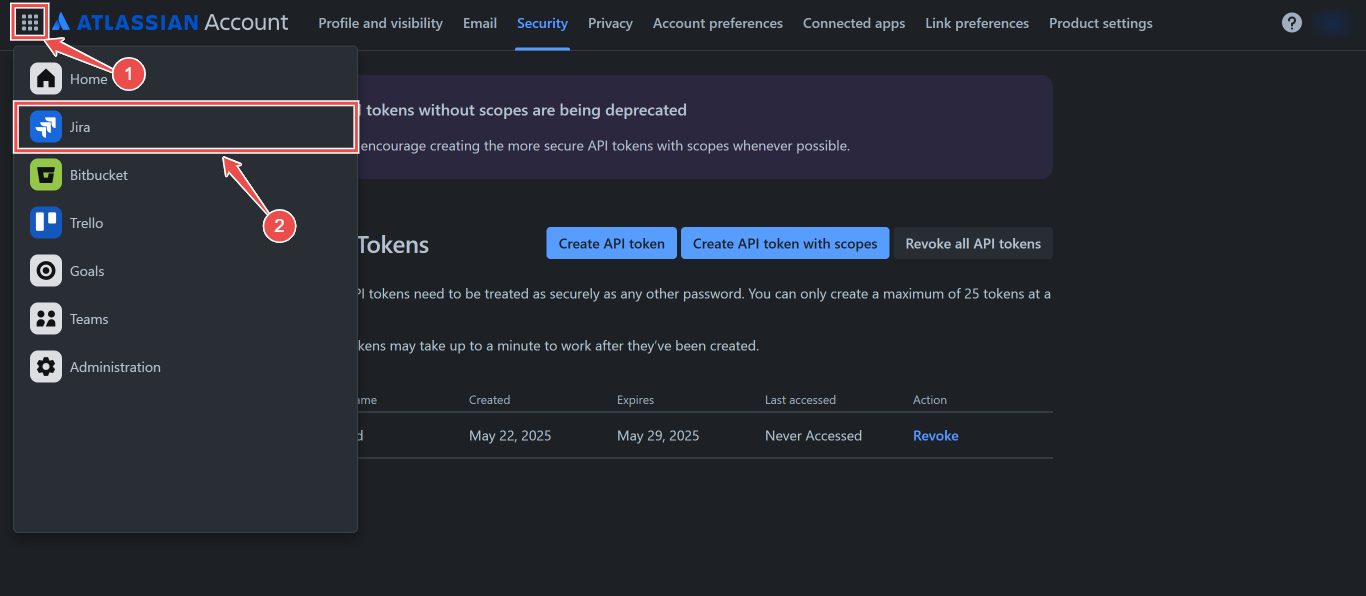
Fig.5 - Atlassian instance
Copy this URL, as it’s required to complete the connection.
Step 2: Add Atlassian Connection to Hawkeye
Now that you have your API Token and Instance URL, follow these steps to connect Atlassian to Hawkeye.
-
Open connections tab in Hawkeye: In the Hawkeye dashboard, go to Connections and select New Connection.
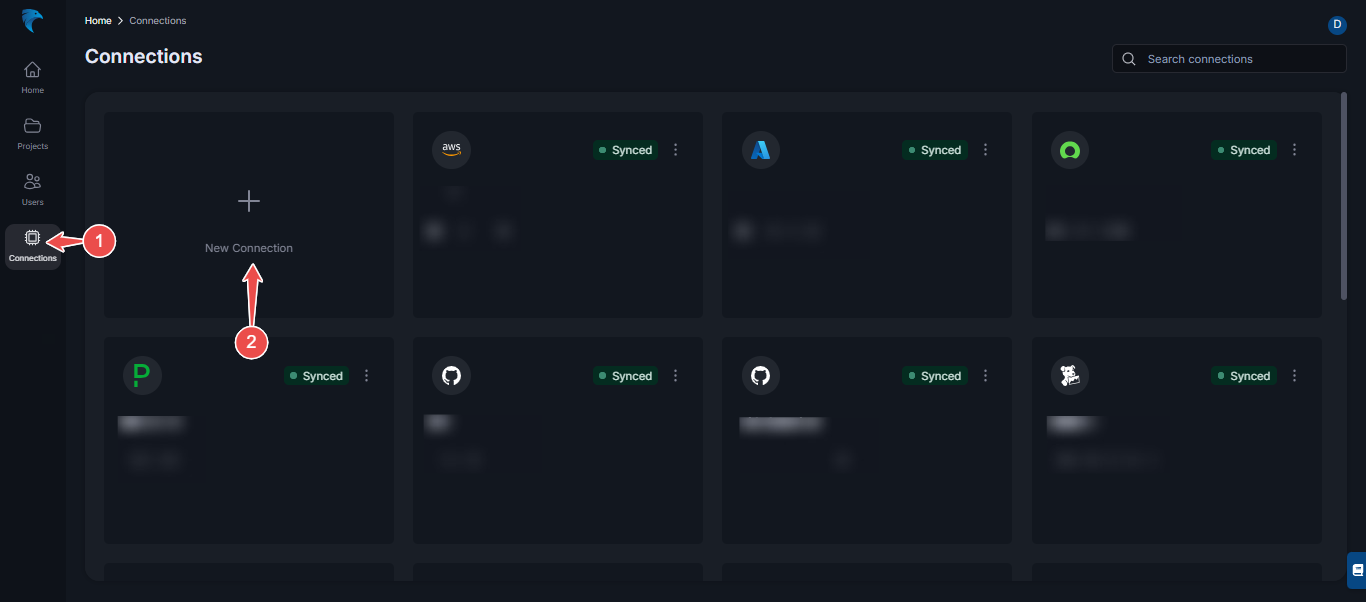
Fig.6 - Atlassian new connection dashboard page
-
Select Atlassian: From the available integrations, select Atlassian.
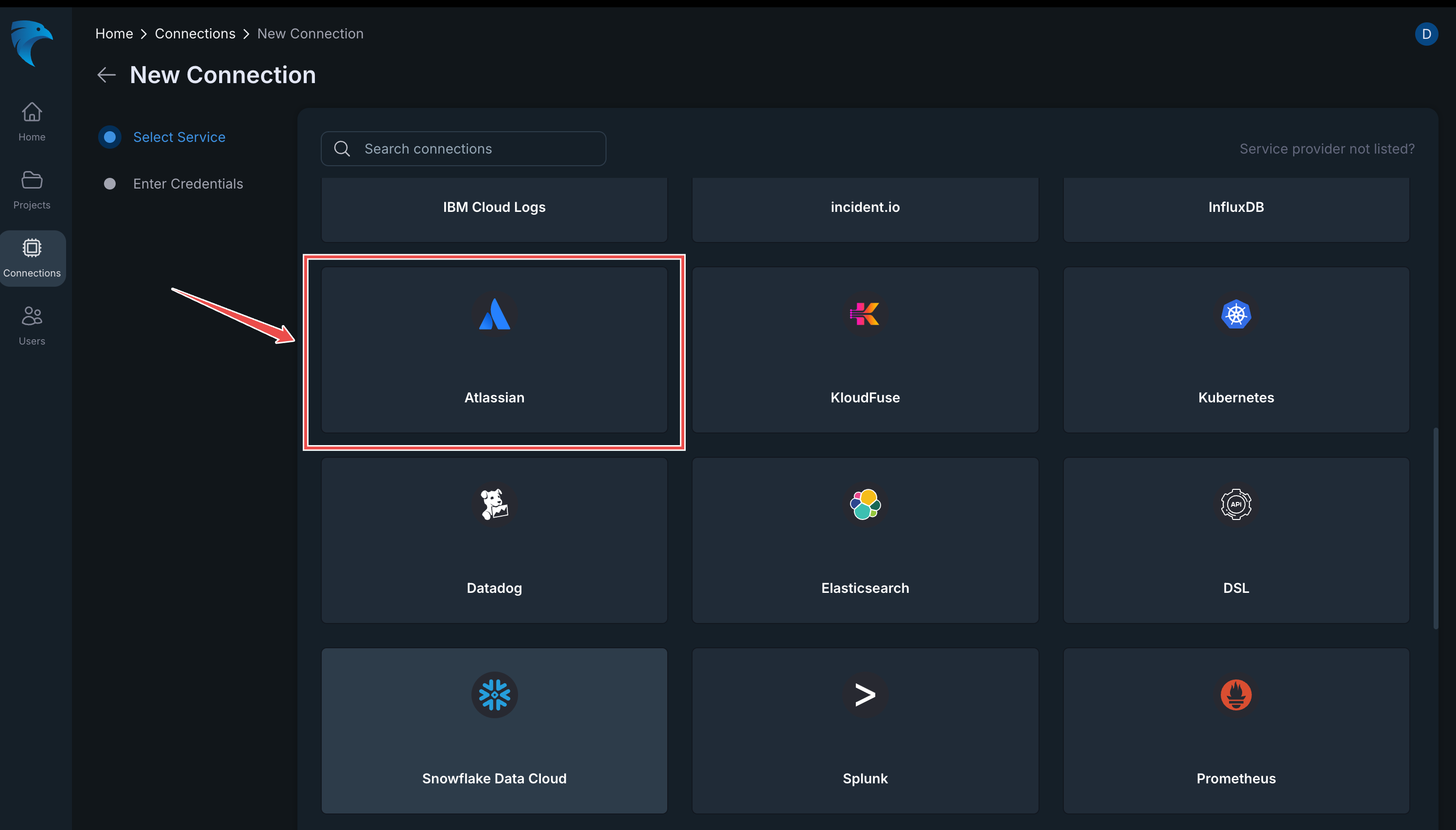
Fig.7 - Atlassian selection
Click Next to proceed.
-
Enter credentials:
- Name: Give your Atlassian connection a descriptive name (e.g., “Atlassian Project Tracker”).
- Description: Optionally, add a description.
- API Token: Paste the API Token generated from the Atlassian API page.
- Instance URL: Enter the URL of your Atlassian instance.
Click Save to finalize the setup.
-
Verify connection: After saving, the connection should be visible on the Connections tab. A successful setup will show the Atlassian connection card on your dashboard.